

 We recently released Percona Backup for MongoDB(PBM) as GA. It’s our open source tool for taking a consistent backup of a running standalone mongod instance, a Replica Set, or a Sharded Cluster as well. The following articles can give you an overview of the tool:
But now I would like to test it for real, so let’s see how it works for taking backups of a Replica Set.
Warning: Percona Backup for MongoDB supports Percona Server for MongoDB and MongoDB Community v3.6 and higher with MongoDB Replication enabled.
At first, let’s briefly discuss the internals. Percona Backup for MongoDB consists of two actors: the pbm-agent and the pbm utility.
The pbm-agent is a process that has to be installed on each mongod node. The agent has a little footprint and it is responsible for various tasks. For example, to detect if a secondary node is the best candidate to do the backup or restore operations and coordinates with the other nodes.
The pbm CLI rules all the agents around and can be installed on any node with access to the MongoDB cluster. The following commands are available in the current 1.0.0 version:
| Command | Description |
|---|---|
| store set (*) | Set up a backup store |
| store show (*) | Show the backup store associated with the active replica set. |
| backup | Make a backup |
| restore | Restore a backup |
| list | List the created backups |
(*) these will become config –set / config — list in version 1.1
My test environment is the following:
The easiest and recommended way to install it is to use the official Percona repositories by using the percona-release utility. More details about Percona repositories and percona-release usage.
Enable the tools
|
1 |
percona-release enable tools |
Install the package
|
1 2 |
apt update apt install percona-backup-mongodb |
The sample configuration files are placed into:
|
1 2 |
/etc/pbm-agent.conf /etc/pbm-agent-storage.conf |
You have to install the package on all the nodes of the replica set: pbm-agent must be installed on each node.
Backup data can be stored on Amazon S3 or compatible storage, such as MinIO. Storing backups on a local filesystem directory also works but isn’t a top recommendation as it requires all servers involved to be given mounts to the same remote backup server.
For running the backup and restore operations, we need to set up a place where the files will be stored and retrieved. In the current 1.0 pbm version, the only two available types of store are:
We’ll use AWS S3 in our test. It’s the easier way at the moment, even for the recovery.
The storage details for pbm can be put into a configuration YAML file. The file contains all required options that pertain to one store. In 1.0, only Amazon Simple Storage Service-compatible remote stores are supported.
We can create the following file storage.yaml, specifying our own access keys:
|
1 2 3 4 5 6 7 |
type:s3 s3: region: us-west-2 bucket: pbm-test-bucket-78967 credentials: access-key-id: "your-access-key-id-here" secret-access-key: "your-secret-key-here" |
To configure pbm to use this storage, execute the following command:
|
1 |
$ pbm store set --config=storage.yaml --mongodb-uri="mongodb://127.0.0.1:27017/" |
You don’t need to supply the store information for any subsequent operations.
Now it’s time to turn on the pbm-agent process on the nodes of the cluster. Let’s run the following command:
|
1 2 3 |
root@mdb1:~# pbm-agent --mongodb-uri mongodb://172.30.2.213:27017 & [1] 3589 root@mdb1:~# pbm agent is listening for the commands |
In —mongodb-uri we have to provide the connection string to the local mongod server.
For the sake of simplicity, I didn’t enable authentication, but in case you have it (as suggested for production environments), you also need to provide the username and password. As an example, you can specify the –mongodb-uri like as the following: mongodb://myuser:[email protected]:2017
After executing the same query on all the nodes we are ready to take the backup.
Now it’s time to run our first backup. I have installed pbm on all the machines of the replica set, and we can use one of them. In a production environment with a lot of nodes, it is worth considering running it from another machine, but be sure that the machine can access mongod on the database nodes.
Let’s run the following command on the nodes and let’s see what’s happening. Please note that the following box shows log messages coming from the different nodes.
|
1 2 3 4 5 6 7 8 9 10 11 12 13 14 15 16 17 18 19 20 21 22 23 24 25 26 27 28 29 |
ubuntu@mdb2:~$ pbm backup --mongodb-uri mongodb://127.0.0.1:27017 Beginning backup '2019-12-12T11:21:10Z' to remote store s3://pbm-test-backups1 ubuntu@mdb2:~$ 2019/12/12 11:21:10 Got command backup 2019-12-12T11:21:10Z 2019/12/12 11:21:10 Backup 2019-12-12T11:21:10Z started on node corra/mdb2:27017 2019/12/12 11:21:18 Oplog started 2019-12-12T11:21:18.659+0000 writing admin.system.version to archive on stdout 2019-12-12T11:21:18.669+0000 done dumping admin.system.version (1 document) 2019-12-12T11:21:18.669+0000 writing admin.pbmCmd to archive on stdout 2019-12-12T11:21:18.671+0000 done dumping admin.pbmCmd (18 documents) 2019-12-12T11:21:18.672+0000 writing admin.pbmConfig to archive on stdout 2019-12-12T11:21:18.695+0000 done dumping admin.pbmConfig (1 document) 2019-12-12T11:21:18.695+0000 writing admin.pbmOp to archive on stdout 2019-12-12T11:21:18.698+0000 done dumping admin.pbmOp (1 document) 2019-12-12T11:21:18.698+0000 writing admin.pbmBackups to archive on stdout 2019-12-12T11:21:18.700+0000 done dumping admin.pbmBackups (1 document) 2019-12-12T11:21:18.701+0000 writing corra.retaurants to archive on stdout 2019-12-12T11:21:18.811+0000 done dumping corra.retaurants (3772 documents) 2019-12-12T11:21:18.811+0000 writing people-bson.people to archive on stdout 2019-12-12T11:21:44.949+0000 done dumping people-bson.people (1000000 documents) 2019/12/12 11:21:44 mongodump finished, waiting to finish oplog 2019/12/12 11:21:45 Backup 2019-12-12T11:21:10Z finished ubuntu@mdb1:~$ 2019/12/12 11:21:10 Got command backup 2019-12-12T11:21:10Z 2019/12/12 11:21:10 Backup has been scheduled on another replset node ubuntu@mdb3:~$ 2019/12/12 11:21:10 Got command backup 2019-12-12T11:21:10Z 2019/12/12 11:21:10 Node in not suitable for backup |
We have launched the backup on mdb2, which is currently a SECONDARY. We can notice that at the same time all the pbm-agents were addressed and decided the best node to use for running the dump. It was mbd2. The dump of all the collections is taken using mongodump.
We can also notice from the log messages that mdb3 was not selected because it’s currently the PRIMARY.
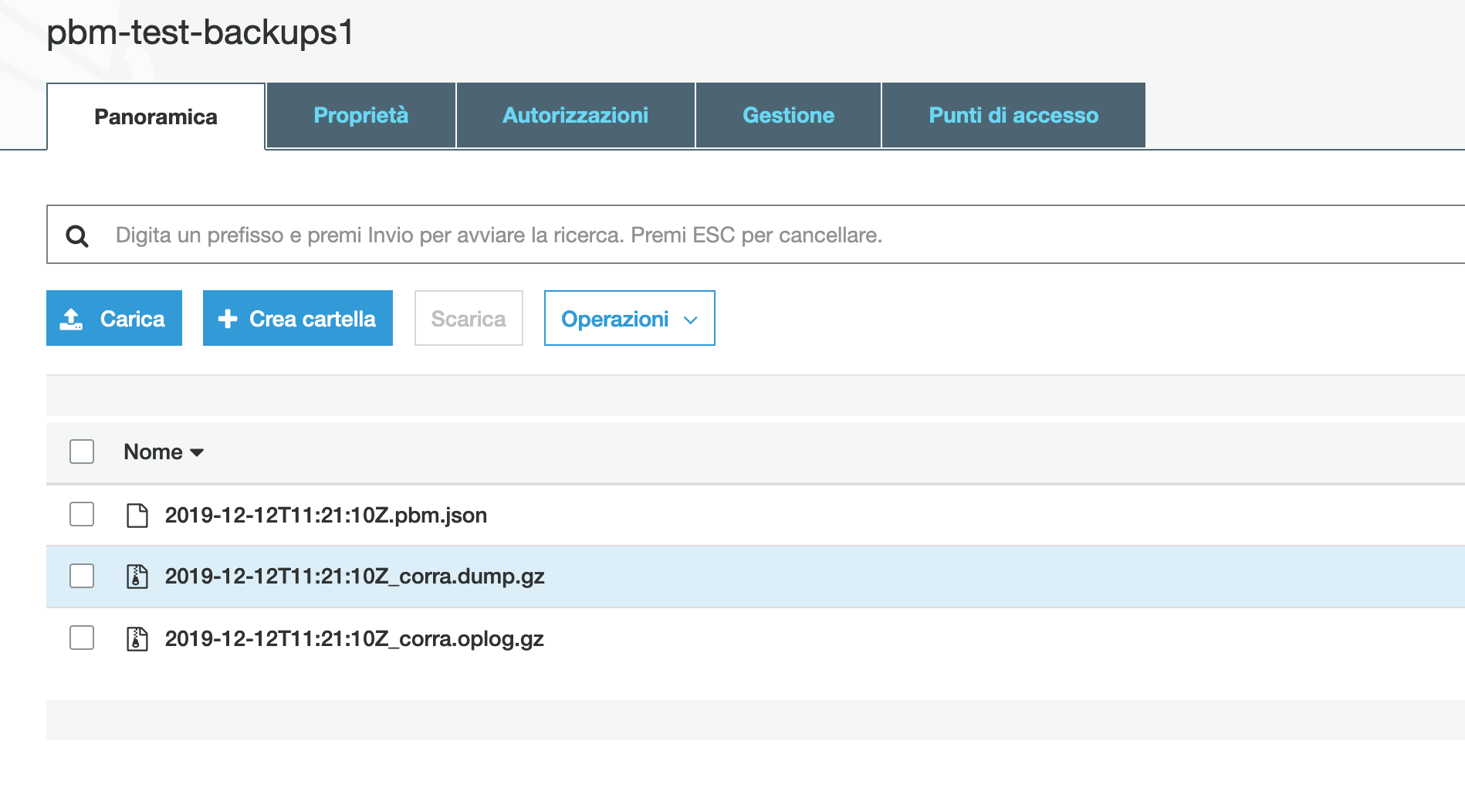
The picture below shows what you should see on AWS S3 if the streaming of the dump files worked as expected. The json file contains metadata about the backup, the other two compressed ones contain the documents of the collections and the oplog collection.
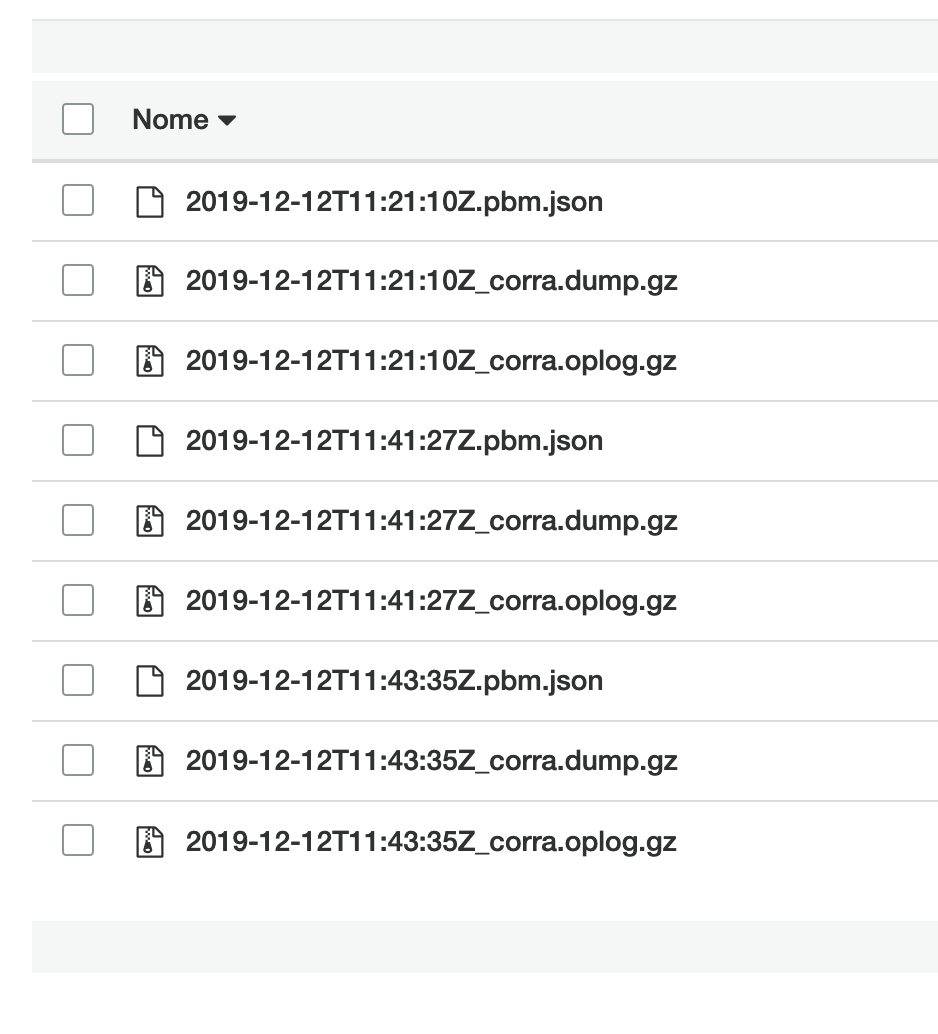
After taking further backups you should see the following:
It’s not mandatory to use the S3 dashboard to see and manage the files, you can use pbm as well. To list all available backups you run the following:
|
1 2 3 4 5 |
ubuntu@mdb2:~$ pbm list --mongodb-uri mongodb://127.0.0.1:27017 Backup history: 2019-12-12T11:21:10Z 2019-12-12T11:41:27Z 2019-12-12T11:43:35Z |
At last, let’s test the recovery. As usual, you just need to use the pbm client.
For example, we would like to restore the first dump we have taken. We need simply to specify the right date and time as returned by the previous list command. That’s all.
|
1 2 |
ubuntu@mdb2:~$ pbm restore 2019-12-12T11:21:10Z --mongodb-uri mongodb://127.0.0.1:27017 Beginning restore of the snapshot from 2019-12-12T11:21:10Z |
Let’s take a look at the log messages on all the nodes to analyze what’s happening.
|
1 2 3 4 5 6 7 8 9 10 11 12 13 14 15 16 17 18 |
ubuntu@mdb2:~$ 2019/12/12 11:51:50 Got command restore 2019-12-12T11:21:10Z 2019/12/12 11:51:50 Node in not suitable for restore ubuntu@mdb1:~$ pbm 2019/12/12 11:51:50 Got command restore 2019-12-12T11:21:10Z 2019/12/12 11:51:50 Node in not suitable for restore ubuntu@mdb3:~$ 2019/12/12 11:51:51 Got command restore 2019-12-12T11:21:10Z 2019/12/12 11:51:51 [INFO] Restore of '2019-12-12T11:21:10Z' started 2019-12-12T11:51:51.314+0000 preparing collections to restore from 2019-12-12T11:51:51.336+0000 reading metadata for corra.retaurants from archive on stdin 2019-12-12T11:51:51.380+0000 restoring corra.retaurants from archive on stdin 2019-12-12T11:51:53.300+0000 no indexes to restore 2019-12-12T11:51:53.300+0000 finished restoring corra.retaurants (3772 documents, 0 failures) 2019-12-12T11:51:53.304+0000 reading metadata for people-bson.people from archive on stdin 2019-12-12T11:51:53.348+0000 restoring people-bson.people from archive on stdin 2019-12-12T11:52:18.139+0000 no indexes to restore 2019-12-12T11:52:18.139+0000 finished restoring people-bson.people (1000000 documents, 0 failures) 2019/12/12 11:52:18 [INFO] Restore of '2019-12-12T11:21:10Z' finished successfully |
The recovery runs on the PRIMARY node, mdb3. The SECONDARY reported they were not suitable for restore, as expected.
Warning: the instance that you will restore your backup to may already have data. After running pbm restore, the instance will have both its existing data and the data from the backup. To make sure that your data is consistent, either clean up the target instance or use an instance without data.
Percona Backup for MongoDB is a good and reliable tool for doing backups of any MongoDB deployment, even for a large Sharded Cluster. Anyway, there’s still a lot of work to do in order to add more features. As shown in the article, pbm is also quite easy to use.
In a future article, we’ll test pbm backup and recovery also on a larger sharded cluster. So, stay tuned for the next chapter and for the next versions of the tool.
Note: TLS does not work in v1.0 due to awaiting-release bug
Consider the links below to follow the development and new releases.





Trying to take backup in Ubuntu 18.04 , getting below error frequently
2019/12/19 14:05:33 Node in not suitable for backup
Also tried with docker with mongo replica , getting same error for backup . Please suggest any issues on this
I try to backup my Mongo Cluster in debian9, but its stuck at:
2019/12/25 16:57:08 mongodump finished, waiting to finish oplog
I wait about half an hour, but still no result, and I don’t know why its blocked.
how can i use pbm restore to restore data to another cluster? it display Error: backup ‘2020-04-10T08:11:10Z’ not found,how can i register backup ‘2020-04-10T08:11:10Z’ for the another cluster
I got a same error when I tried to restore on a new cluster set. I do find the solution of this. Error : backup ” not found.
Hi, I found the answer.
First, you should backup admin database and restore it to new cluster config database. it has all backup history of pbm backup so pbm agent need it to restore backup files.
After restore admin db via mongorestore I was able to restore pbm bakcup files to the new cluster db set.
And don’t forget you mount the remote storage within the config you already set as well.
If you have any question reply after this comment.
Good luck.
Hi Regina, you can also use the –force-resync option for this