

 Percona Monitoring and Management (PMM) is a free and open-source platform for managing and monitoring MySQL®, MongoDB®, and PostgreSQL® performance. You can run PMM in your own environment for maximum security and reliability. It provides thorough time-based analysis for MySQL, MongoDB, and PostgreSQL servers to ensure that your data works as efficiently as possible.
Please see our previous blog for full information on the new features included in PMM2, our latest software release.
To use PMM2 you will need to remove any earlier versions of PMM Server and Client as there is no in-place upgrade path for historical data, and then download and run our latest software.
The easiest way to install PMM Server is to deploy it with Docker. Running the PMM2 Docker container with PMM Server can be done by the following commands (note the version tag of 2):
|
1 2 |
docker create -v /srv --name pmm-data percona/pmm-server:2 /bin/true docker run -d -p 80:80 -p 443:443 --volumes-from pmm-data --name pmm-server --restart always percona/pmm-server:2 |
Now you can check the newly installed PMM Server in your browser, going to your server by its IP address and using the default credentials:
username: admin
password: admin
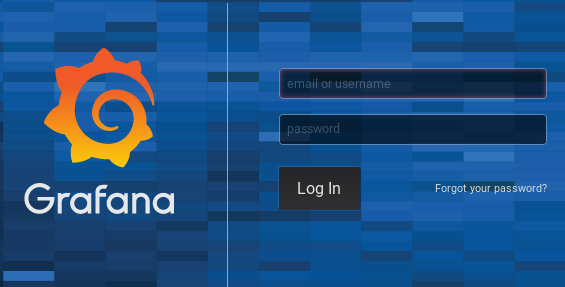
You will be prompted to change the admin password after logging in.
You can get PMM2 Client package from the official download page on the Percona web site, or use the official percona-release package from Percona to enable the tools repository, as follows (please see percona-release official documentation for further details on this new tool).
Install the Percona repository:
|
1 2 |
wget https://repo.percona.com/apt/percona-release_latest.generic_all.deb sudo dpkg -i percona-release_latest.generic_all.deb |
Install the pmm2-client package:
|
1 2 |
apt-get update apt-get install pmm2-client |
Install the Percona repository:
|
1 |
sudo yum install https://repo.percona.com/yum/percona-release-latest.noarch.rpm |
Install the pmm2-client package:
|
1 2 |
sudo yum update sudo yum install pmm2-client |
Users who have previously installed pmm2-client pre-release versions should fully remove the package and then install the latest available version.
Once PMM Client is installed, run the pmm-admin config command with your PMM Server IP address in order to register with the PMM Server:
Note that you need to pass the authentication string as part of the --server-url. These credentials are the same ones you used to login to PMM Server.
|
1 |
sudo pmm-admin config --server-insecure-tls --server-url=https://admin:admin@<IP Address>:443 |
You should see the following:
|
1 2 3 4 5 6 7 8 9 |
Checking local pmm-agent status... pmm-agent is running. Registering pmm-agent on PMM Server... Registered. Configuration file /usr/local/percona/pmm2/config/pmm-agent.yaml updated. Reloading pmm-agent configuration... Configuration reloaded. Checking local pmm-agent status... pmm-agent is running. |
MySQL server can be added for the monitoring in its normal way. Here is a command which adds it using the PERFORMANCE_SCHEMA source:
|
1 |
pmm-admin add mysql --query-source=perfschema --username=pmm --password=pmm |
where username and password are credentials for the monitored MySQL access, which will be used locally on the database host.
The syntax to add MySQL services (Metrics and Query Analytics) using the Slow Log source is the following:
|
1 |
pmm-admin add mysql --query-source=slowlog --username=pmm --password=pmm |
When the server is added, you can check your MySQL dashboards and Query Analytics in order to view its performance information!
Please refer to PMM 2 documentation to find out how to set up the required permissions and enable profiling with MongoDB.
You can add MongoDB services (Metrics and Query Analytics) with a similar command:
|
1 |
pmm-admin add mongodb --username=pmm --password=pmm |
Please refer to PMM2 documentation to find out how to add PostgreSQL extension for queries monitoring, as well as set up the required user permissions and authentication.
Add PostgreSQL monitoring to your PMM Server with the following command:
|
1 |
pmm-admin add postgresql --username=pmm --password=pmm |
Where username and password parameters should contain actual PostgreSQL user credentials.
You can add ProxySQL service as follows:
|
1 |
pmm-admin add proxysql --username=admin --password=admin |
Please help us improve our software quality by reporting any Percona Monitoring and Management bugs you encounter using our bug tracking system.
Resources
RELATED POSTS





More information on Linux generic client installation is much appreciated.
Step 1: Extract tar file.
pmmclient:/opt/mysql # tar -zxvf pmm2-client-2.0.0.tar.gz
pmm2-client-2.0.0/
pmm2-client-2.0.0/config/
pmm2-client-2.0.0/config/pmm-agent.init
pmm2-client-2.0.0/config/pmm-agent.service
pmm2-client-2.0.0/config/pmm-agent.logrotate
pmm2-client-2.0.0/rpm/
pmm2-client-2.0.0/rpm/pmm2-client.spec
pmm2-client-2.0.0/queries-postgres.yml
pmm2-client-2.0.0/bin/
pmm2-client-2.0.0/bin/mongodb_exporter
pmm2-client-2.0.0/bin/pmm-admin
pmm2-client-2.0.0/bin/clickhouse_exporter
pmm2-client-2.0.0/bin/proxysql_exporter
pmm2-client-2.0.0/bin/pmm-agent
pmm2-client-2.0.0/bin/postgres_exporter
pmm2-client-2.0.0/bin/node_exporter
pmm2-client-2.0.0/bin/mysqld_exporter
pmm2-client-2.0.0/bin/rds_exporter
pmm2-client-2.0.0/VERSION
pmm2-client-2.0.0/queries-mysqld.yml
pmm2-client-2.0.0/example.prom
pmm2-client-2.0.0/install_tarball
pmm2-client-2.0.0/debian/
pmm2-client-2.0.0/debian/copyright
pmm2-client-2.0.0/debian/rules
pmm2-client-2.0.0/debian/compat
pmm2-client-2.0.0/debian/install
pmm2-client-2.0.0/debian/files
pmm2-client-2.0.0/debian/postrm
pmm2-client-2.0.0/debian/preinst
pmm2-client-2.0.0/debian/control
pmm2-client-2.0.0/debian/postinst
pmmclient:/opt/mysql # cd pmm2-client-2.0.0/
pmmclient:/opt/mysql/pmm2-client-2.0.0 # ls
VERSION bin config debian example.prom install_tarball queries-mysqld.yml queries-postgres.yml rpm
Step 2: Install
pmmclient:/opt/mysql/pmm2-client-2.0.0 # ./install_tarball
Installing into /usr/local/percona/pmm2…
Step 3: Post install not seeing any client on the server.
pmmclient:/opt/mysql/pmm2-client-2.0.0 # pm
pmap pmap_set2 pmt-ehd pmvarrun
Config command: pmm-admin config –server-insecure-tls –server-url=https://admin:admin@:443
store the credentials in file : /usr/local/percona/pmm2/config/pmm-agent.yaml
Also it displays it when run: pmm-admin status
As config command only accepts user with grafanaAdmin privileges.
It should be implemented in way to not to disclose Admin password and also not to store any passwords (Grafana + Database) in monitoring nodes in plain text format.
Hi @Sids
What did you expect instead of the existing syntax? Can you provide an example?
Hey @Michael Rikmas. I don’t see issue in syntax but the flow by which pmm-admin registers node.
This can be secured by not storing “GrafanaAdmin” credentials as PLAIN-TEXT on to monitoring nodes and if possible to allow configuring monitoring nodes with “Admin” credentials instead of “GrafanaAdmin” if possible. Already reported bug PMM-4743 for same.
BTW, PMM2 is great… 🙂
Looks like the client installation is not working as expected on SUSE Linux Enterprise Server 12 SP1 & SUSE Linux Enterprise Server 12 SP3
pmmclient:/opt/mysql/pmm2-client-2.0.0 # ./install_tarball
Installing into /usr/local/percona/pmm2…
pmmclient:/opt/mysql/pmm2-client-2.0.0 # pmm-admin config –server-insecure-tls –server-url=https://admin:admin@ipaddress:444/
If ‘pmm-admin’ is not a typo you can use command-not-found to lookup the package that contains it, like this:
cnf pmm-admin
pmmclient:/opt/mysql/pmm2-client-2.0.0 # export PATH=/usr/local/percona/pmm2/bin:$PATH
pmmclient:/opt/mysql/pmm2-client-2.0.0 # pmm-admin config –server-insecure-tls –server-url=https://admin:admin@ipaddress:443
Checking local pmm-agent status…
pmm-agent is not running. Please re-run
pmm-agent setupwith –config-file flag.pmmclient:/opt/mysql/pmm2-client-2.0.0 #
Hi,
I have a problem when I add new service monitoring with different port and address :
pmm-admin add mysql –query-source=slowlog –username=’pmm’ –password=’****’ localhost:53308
Connection check failed: dial tcp 127.0.0.1:3306: connect: connection refused.
Why pmm-admin force the default ?
Thanks
I was able to install and configure Generic Linux PMM agent by myself. At a high level the following are the steps followed.
——————————————————-
Generic Linux PMM Agent Installation & Configuration.
——————————————————-
wget https://www.percona.com/downloads/pmm2/2.0.0/binary/tarball/pmm2-client-2.0.0.tar.gz
tar -zxvf pmm2-client-2.0.0.tar.gz
cd pmm2-client-2.0.0
./install_tarball
export PATH=/usr/local/percona/pmm2/bin:$PATH
#1) Configure Agent.
/usr/local/percona/pmm2/bin/pmm-agent setup –config-file=/usr/local/percona/pmm2/config/pmm-agent.yaml –server-insecure-tls –server-address=PMM-Hostname/IP:443 –server-username=admin –server-password=admin
#2) Start Agent
/usr/local/percona/pmm2/bin/pmm-agent –config-file=/usr/local/percona/pmm2/config/pmm-agent.yaml &
#3) Add MySQL to pmm monitoring.
/usr/local/percona/pmm2/bin/pmm-admin add mysql –environment=PROD –replication-set=repset-name –username=DB_USER_NAME –password=DB_PASSWD –query-source=perfschema Hostname HostIP:3306
——————————————————-
Yes, it appears the current version is broken as the pmm-agent won’t set up correctly, it’s referring to a command that doesn’t exist
Figured it out. To configure pmm-agent –server-url isn’t going to work, it needs –server-address along with –server-username and –server-password
pmm-admin config
Checking local pmm-agent status…
pmm-agent is not running. Please re-run
pmm-agent setupwith –config-file flag.Hi, if I’m running pmm-server version 1.17.1 in a docker container and have a pmm data volume, will that data be compatible with pmm version 2 ? and would I still be able to view my historic data through pmm 2?
Thanks,
Hi Crazyhorse, there is no in-place migration for data from 1.x to 2.x . You will need to set up a separate PMM 2 Server
Hi again, how can I run the pmm and pmm2 clients in parallel until I have enough historic data on pmm2 that I can then switch pmm off? I notice the clients both use the ‘pmm-admin’ command, is there anyway for the 2 clients to differentiate the configuration?
Hi @crazyhorse019
See our post from late November on how to run both clients at the same time on the same host:
https://www.percona.com/blog/2019/11/27/running-pmm1-and-pmm2-clients-on-the-same-host/
Hi I want to install pmm server on Rhel server. I have downloaded all related RPMs. And pmm-server-server rpm. But how to start pmm and how GUI will come up. ?
I can’t see any instructions to install pmm server in stand alone rhel machine.
Institutions just talk about docker ,aws, and VMware
Pls let me know
Hi @Pavan
Percona does not support installation formats outside of the three: docker, AWS Marketplace, or OVA/OVF. Sorry,
Any idea how to run client on mysql and connect to remote pmm2 server? My pmm2 is server at pod and I’m tryiung to connect my clinet from other pod with mysq and then I’ve got:
bash-4.2$ sudo pmm-admin config –server-insecure-tls –server-url=https://admin:[email protected]:443
Checking local pmm-agent status…
pmm-agent is running but does not read configuration from the file. Please restart it with –config-file flag.
Why it want to connect to local agent when I set server url??
Hi @pawel
Are you using Kubernetes? At this time PMM is not supported in a k8s environment. We are working to provide this support in an upcoming release, as it will impact how we deliver pmm2-client package as well as our PMM Server docker image.
Interestingly we are also getting the same error, we are not running on k8s but using docker image.
i have followed the instructions to the T but unable to get it to run. both server and client are on dockers,
Kindly help
Hi Vivek, Percona is supporting Customers running PMM Server 2 on Kubernetes and docker. I recommend you post to the Percona Forums, tag me there and we’ll get you working 🙂
https://forums.percona.com/categories/pmm-v2
Hello, How can i add collectors to node_exporter? In the previous version of PMM i only had to edit the systemd unit, how is achived in that new version?
Hi Juanjo,
PMM2 does not yet support modification of the node_exporter collectors. We expect to introduce this functionality in an upcoming release