
 Recently I’ve been faced with an interesting challenge. How can I replicate data, in real-time, from DynamoDB to MongoDB?
Why would I need real-time replication like that? For example:
If you need to migrate data from DynamoDB to MongoDB, there are tools and solutions available on the internet, but basically all of them require stopping the application for some time. There are not a lot of solutions for real-time replication, however.
In this article, I’ll show the solution I have implemented to achieve that.
I’ll show you how to deploy a Replicator for a single DynamoDB table. You can scale to more tables by deploying more Replicators the same way.
DynamoDB stores documents using JSON, the same as MongoDB. This simplifies the development of the Replicator’s code, but the documents still need some little adjustments to be fully compatible.
Note: for the test, we assume you have already an AWS account with proper rights for creating and managing all the features we’ll use. Also, we assume you have the aws CLI (Command Line Interface) installed and you have knowledge of the AWS basics about networking, IAM roles, firewall rules, EC2 creation, and so on. Also, we assume you have already a MongoDB server installed into an EC2 instance.
The solution uses the following technologies:
A DynamoDB stream consists of stream records. Each stream record represents a single data modification in the DynamoDB table to which the stream belongs. Each stream record is assigned a sequence number, reflecting the order in which the record was published to the stream.
Stream records are organized into groups or shards. Each shard acts as a container for multiple stream records. The stream records within a shard are removed automatically after 24 hours.
Any single item of the stream has a type: INSERT, MODIFY or REMOVE, and it can contain the images of the new and old document. An image is the complete JSON document. In the case of INSERT, only the new image is present on the stream. In the case of REMOVE, the old image of the document is available on the stream. In the case of MODIFY, both images can be available on the stream.
The Lambda function is automatically triggered when connected to a source stream like the DynamoDB Stream. As soon as new events are available on the stream, the Lambda function is triggered, AWS creates a container and executes the code associated with the function. The number of events processed by any Lambda container is managed by AWS. We have the capability to set some configuration parameters, but we cannot get complete control of it. AWS manages automatically the scaling of Lambda providing all the resources it needs. In case of a very high write load, we can see hundreds or thousands of Lambda invocations per second.
The Lambda function reads the events from the stream, applies some conversions, and connects to MongoDB to execute the operations:
When Lambda finishes computing a batch of events, the container is not immediately destroyed. In fact, a container can be reused by other incoming Lambda invocations. This is an optimization that can help in case of a massive load. As a consequence, you can see thousands of Lambda invocations but fewer running instances.
The following picture summarizes the idea of the solution.
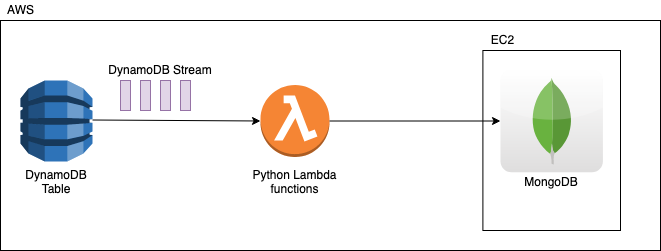
Note: for the sake of simplicity we are using a MongoDB server on an EC2 machine on AWS. But you can eventually replicate to a MongoDB deployed elsewhere, on another cloud platform like Google Cloud for example, or in your on-premise data center. Just remember in this case to open firewall rules, setting up ssh tunnels to encrypt connections or do whatever is needed to enable proper connectivity to the remote MongoDB ports. This is not covered on this article.
Be sure you have aws CLI installed and your credentials stored in the file ~/.aws/credentials.
|
1 2 3 |
[default] aws_access_key_id = <your_accedd_key_id> aws_secret_access_key = <your_secret_access_key> |
Create a DynamoDB table named mytable.
|
1 2 3 4 |
$ aws dynamodb create-table --table-name mytable --attribute-definitions AttributeName=id,AttributeType=N --key-schema AttributeName=id,KeyType=HASH --provisioned-throughput ReadCapacityUnits=5,WriteCapacityUnits=5 |
We’ll store very simple documents with 3 fields:
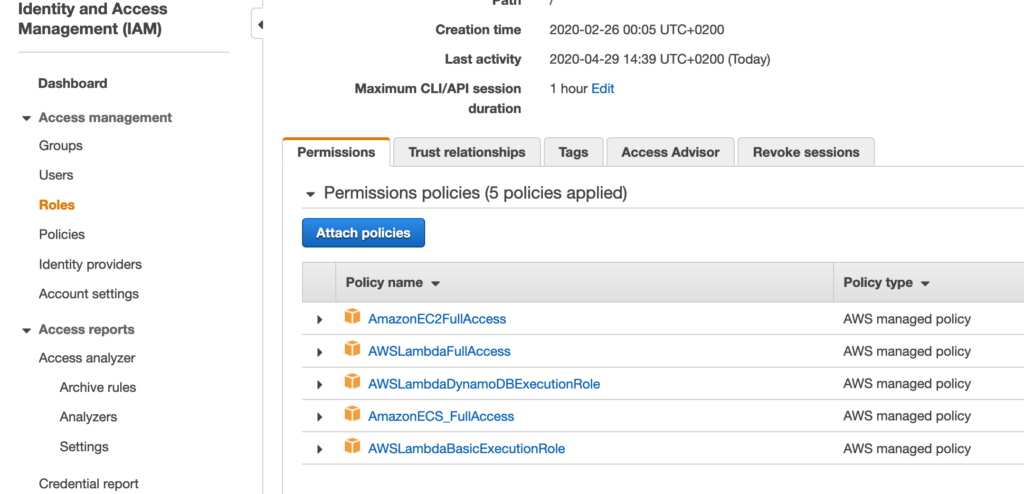
A Lambda function requires a role with specific policies in order to be executed and accessing other AWS resources.
In the IAM dashboard you can create the role lambda-dynamodb-role and assign to it the policies you can see in the following picture:
Let’s create the following file with the name replicator.py. This will be the code executed by Lambda at each invocation.
|
1 2 3 4 5 6 7 8 9 10 11 12 13 14 15 16 17 18 19 20 21 22 23 24 25 26 27 28 29 30 31 32 33 34 35 36 37 38 39 40 41 42 43 44 45 46 47 48 49 50 51 52 53 54 55 56 57 58 59 60 61 62 63 64 65 66 67 68 69 70 71 72 73 74 75 76 77 78 79 80 81 82 83 84 85 |
from __future__ import print_function import pymongo import json import boto3 import os import time import uuid from datetime import datetime from decimal import Decimal from dynamodb_json import json_util as json def lambda_handler(event, context): # read env variables for mongodb connection urlDb = os.environ['mongodburl'] database = os.environ['database'] table = os.environ['table'] # configure pymongo connection myclient = pymongo.MongoClient(urlDb) mydb = myclient[database] mycol = mydb[table] count = 0 with myclient.start_session() as session: for record in event['Records']: ddb = record['dynamodb'] if (record['eventName'] == 'INSERT' or record['eventName'] == 'MODIFY'): newimage = ddb['NewImage'] newimage_conv = json.loads(newimage) # create the explicit _id newimage_conv['_id'] = newimage_conv['id'] ### custom conversions ### # add a field if it not exists if "age" not in newimage_conv: newimage_conv['age'] = None # convert epoch time to ISODate newimage_conv['created_at'] = datetime.utcfromtimestamp(newimage_conv['created_at']) try: mycol.update_one({"_id":newimage_conv['_id']}, { "$set" : newimage_conv}, upsert=True, session=session) count = count + 1 except Exception as e: print("ERROR update _id=",newimage_conv['_id']," ",type(e),e) elif (record['eventName'] == 'REMOVE'): oldimage = ddb['OldImage'] oldimage_conv = json.loads(oldimage) try: mycol.delete_one({"_id":oldimage_conv['id']}, session=session) count = count + 1 except Exception as e: print("ERROR delete _id",oldimage_conv['id']," ",type(e),e) session.end_session() myclient.close() # return response code to Lambda and log on CloudWatch if count == len(event['Records']): print('Successfully processed %s records.' % str(len(event['Records']))) return { 'statusCode': 200, 'body': json.dumps('OK') } else: print('Processed only ',str(count),' records on %s' % str(len(event['Records']))) return { 'statusCode': 500, 'body': json.dumps('ERROR') } |
Analysis of the code:
Further notes:
As a reference, see below how an event of the DynamoDB Stream looks like:
|
1 2 3 4 5 6 7 8 9 10 11 12 13 14 15 16 17 18 19 |
[ { 'eventID': 'c086abf49b26ff0e2e1b0d4d5b62fd57', 'eventName': 'INSERT', 'eventVersion': '1.1', 'eventSource': 'aws:dynamodb', 'awsRegion': 'eu-west-1', 'dynamodb': {'ApproximateCreationDateTime': 1588166542.0, 'Keys': {'id': {'N': '3'}}, 'NewImage': {'created_at': {'N': '1588166541'}, 'id': {'N': '3'}, 'Name': {'S': 'John'} }, 'SequenceNumber': '5123400000000006390906141', 'SizeBytes': 33, 'StreamViewType': 'NEW_AND_OLD_IMAGES' }, 'eventSourceARN': 'arn:aws:dynamodb:eu-west-1:123456780000:table/mytable/stream/2020-04-30T17:47:21.395' } ] |
The best way to deploy the Lambda function is by creating a deployment package. Since the function depends on libraries other than the SDK for Python (Boto3, already available on AWS container) we have to install them to a local directory with pip and include them in the deployment package.
Install libraries in a new, project-local package directory with pip’s –target option.
|
1 2 |
$ pip install --target ./package pymongo $ pip install --target ./package dynamodb_json |
Create a ZIP archive of the dependencies
|
1 2 |
$ cd package $ zip -r9 ${OLDPWD}/function.zip . |
Add your function code to the archive
|
1 2 |
$ cd $OLDPWD $ zip -g function.zip replicator.py |
Create the function
|
1 2 3 4 5 6 7 8 |
aws lambda create-function --function-name Replicator --handler replicator.lambda_handler --zip-file fileb://function.zip --runtime python3.8 --timeout 10 --role arn:aws:iam::123456780000:role/lambda-dynamodb-role --environment 'Variables={mongodburl="mongodb://myuser:[email protected]:27017",database="replicatest",table="mytable"}' --vpc-config 'SubnetIds=subnet-017ba366,subnet-7fa54224,subnet-9709afde,SecurityGroupIds=sg-061fed4f08993f30c' |
Notes:
Now the Lambda function is deployed and we can start using it.
In case of errors during Lambda invocation or in case of timeout expiration, the function will be retried many times using the same batch of events until it succeeds. Just remember that after six hours (default, but it’s tunable) the batch is completely lost. Also, remember that the DynamoDB Stream provides data only for the last 24 hours.
Instead, in case of application errors during Lambda’s code execution, the function is not retried. In our case, we decided to write documents that generated errors on CloudWatch’s logs. You can also configure Lambda to send messages to SNS or writing a file on S3 if you prefer.
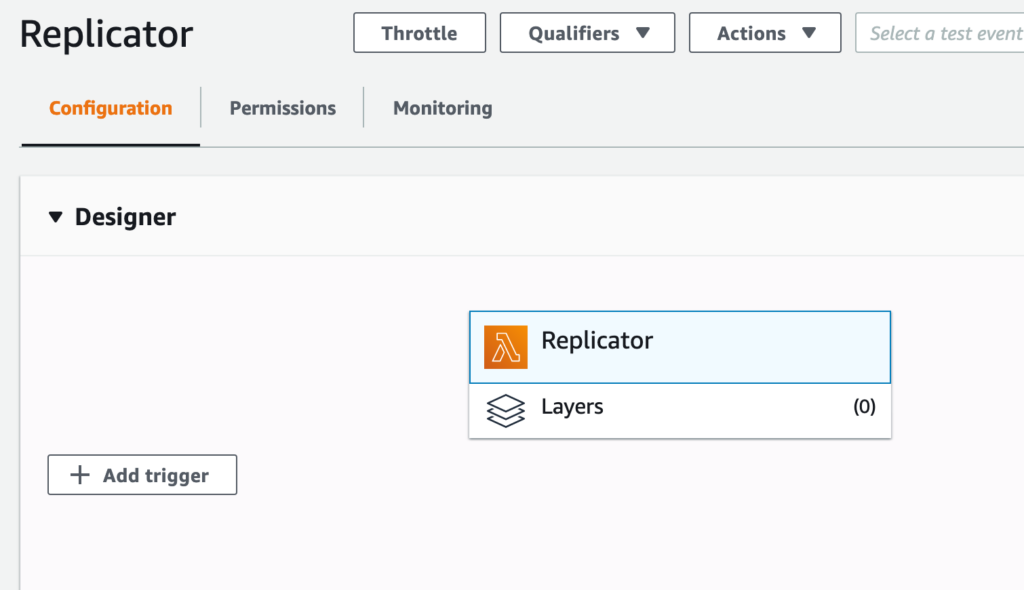
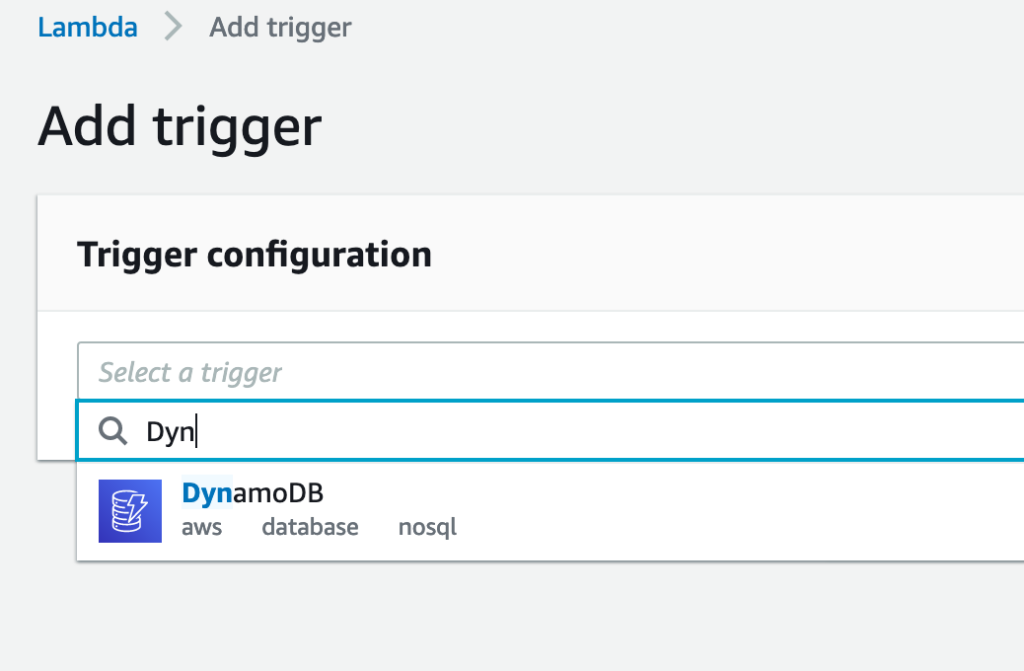
Enabling the stream is trivial. It’s just a matter of creating a trigger on the Lambda dashboard.
The following pictures show how to configure the trigger. First, click on “Add trigger”:
Select “DynamoDB” from the list:
Select the table from the “DynamoDB table” menu:
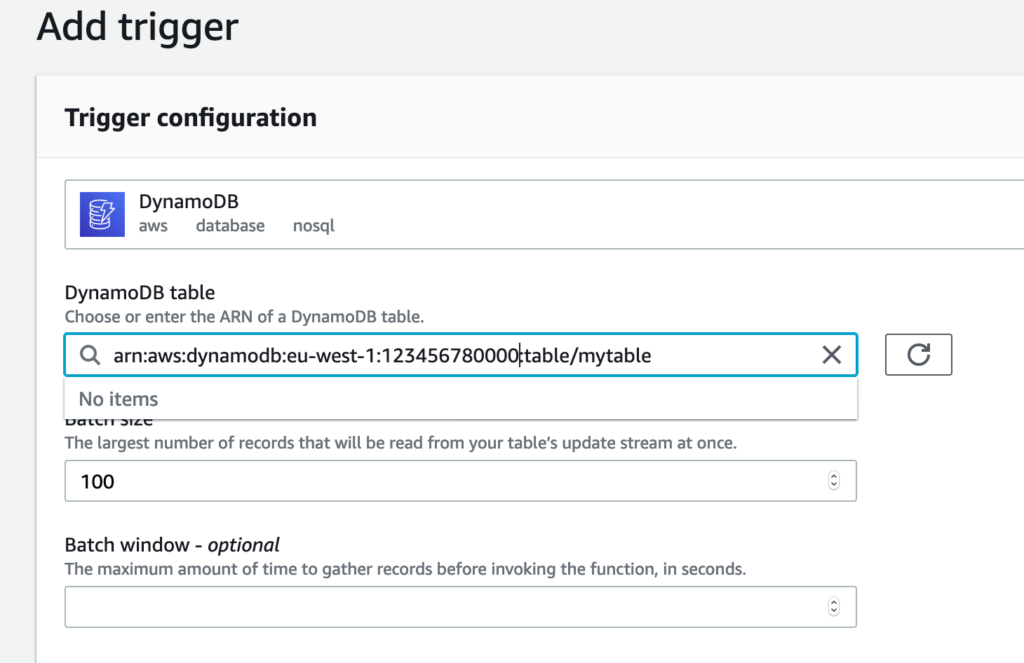
Click on the “Add” button at the bottom. That’s all. At this point, the Lambda function will start triggering as soon as the first batch of events will be saved on the stream. If the table doesn’t have already a stream it is automatically created.
Finally, we have the Replicator up and running. Let’s check if it works for real.
Let’s manually insert some documents on the DynamoDB table.
|
1 2 3 4 5 6 |
$ aws dynamodb put-item --table-name mytable --item '{ "id": { "N": "1" }, "Name": { "S": "John" }, "created_at": { "N": "1588166528" } }' $ aws dynamodb put-item --table-name mytable --item '{ "id": { "N": "2" }, "Name": { "S": "Clare" }, "created_at": { "N": "1588166535" } }' $ aws dynamodb put-item --table-name mytable --item '{ "id": { "N": "3" }, "Name": { "S": "Tom" }, "created_at": { "N": "1588166541" } }' |
Check on the DynamoDB dashboard that they have been correctly inserted and look at some documents.
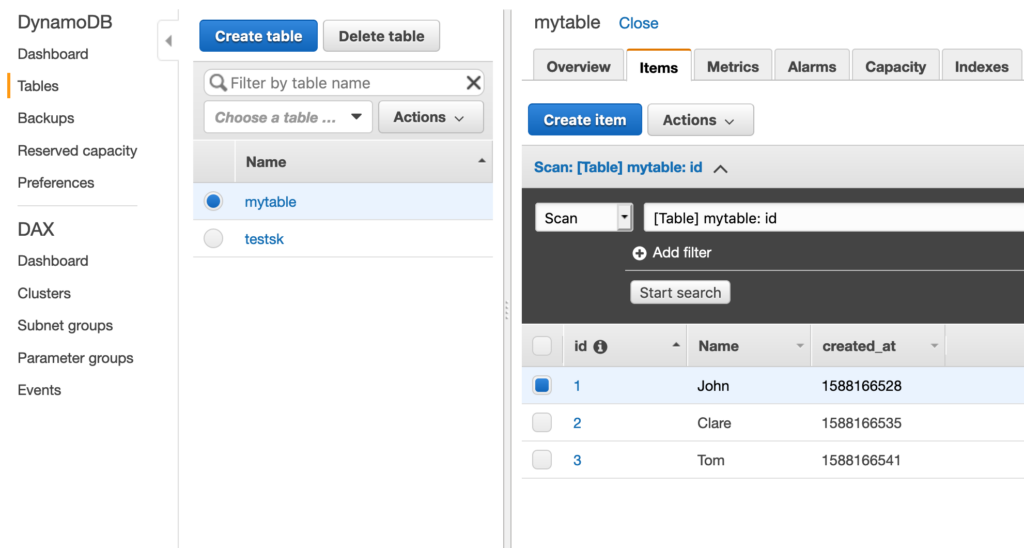
Now, let’s connect to MongoDB and check if the documents have been replicated or not.
|
1 2 3 4 5 6 7 8 |
> use replicatest switched to db replicatest > show collections mytable > db.mytable.find() { "_id" : 1, "Name" : "John", "age" : null, "created_at" : ISODate("2020-04-29T13:22:08Z"), "id" : 1 } { "_id" : 2, "Name" : "Clare", "age" : null, "created_at" : ISODate("2020-04-29T13:22:15Z"), "id" : 2 } { "_id" : 3, "Name" : "Tom", "age" : null, "created_at" : ISODate("2020-04-29T13:22:21Z"), "id" : 3 } |
Great, it works. Also, notice that the creation of _id and the other custom conversions worked as well. We added the new field age and changed the epoch value to ISODate.
If you set everything correctly, you should be able to achieve the same result.
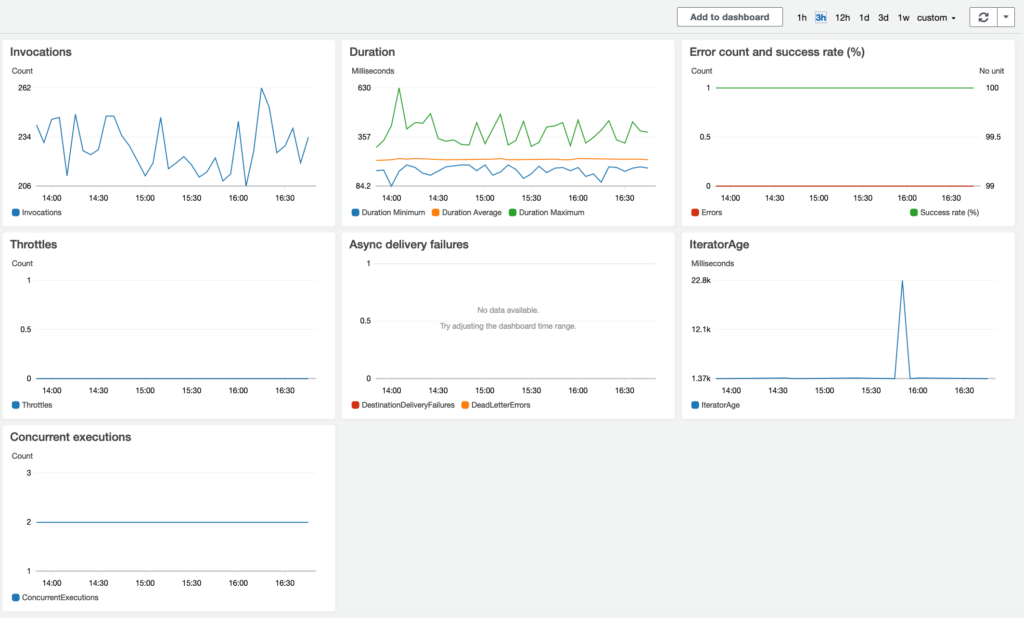
On the Lambda dashboard, you can inspect how your function is working.
Looking at the “Monitoring” tab you can see the following graphs. What you see in the pictures has been taken from a real environment, with some relevant write load:
Here are some limitations and warnings you should be aware of.
It’s difficult controlling the number of invocations of Lambda and the number of concurrently running instances. The number of instances triggered depends mostly on the DynamoDB write load and the frequency of writes in the short period. AWS tries to trigger an invocation as soon as it gets new events in the stream, but at the same time, it tries to manage more events at once.
In most of the cases, by default, you cannot run more than 1000 concurrent Lambda functions in total. It’s a limitation by design in AWS. If you have a very busy environment to replicate you can hit this limitation. If it is not possible decreasing the number of concurrent functions changing some parameters like the “maximum block size” or “chunk window”, it is worth considering asking AWS to increase that limit to more than 1000.
Hint: before asking AWS to increase the limit, you can consider setting differently the “Reserve Concurrency” settings. You can reserve a certain number of concurrent execution by setting this parameter on the dashboard. Just remember that you cannot reserve more than 1000 for all your Lambda functions. If you set to “Use unreserved account concurrency” AWS will manage automatically the running functions depending on the incoming traffic on the streams.
DynamoDB can handle really an impressive number of writes. DynamoDB can scale automatically to a very large scale in order to manage all the incoming writes. Basically you can use an unlimited capability provided by AWS.
If you have very busy tables in DynamoDB it could simply happen that your MongoDB cluster is not able to write at the same speed as DynamoDB. In this situation, the Replicator won’t be able to catch-up.
There’s no magic here. If you need to catch-up faster, you just need to provide a faster MongoDB instance. For replicating a large dataset, most likely you need to evaluate a sharded MongoDB cluster instead of a single replica set. Add as many shards as you need in order to be able to run more writes than DynamoDB.
Looking at the IteratorAge graph in the monitoring tab on the Lambda dashboard, you can see what is the difference in milliseconds between when the last record in a batch was recorded and when Lambda reads the record. From this graph, you can understand if your Replicator is able to catch-up or not. If you see a constantly increasing line it means the Replicator will never catch-up. The two main reasons for the increasing latency are:
All the print() commands in the code write on CloudWatch’s logs. When you need to debug your function, you have to take a look at those logs. Unfortunately managing very large log files using the AWS dashboard is a difficult task. I suggest to download them locally and use grep to find out the errors. Also, remember that on CloudWatch you will have one log file for any Lambda container. You could have thousands or millions of files. It could be really a hard task managing them.
Here you have a helper bash script you can use to download all the logs you need into a single text file. You just need to specify the name of the function and the time range.
|
1 2 3 4 5 6 7 8 9 10 11 12 13 14 15 16 17 18 19 20 21 22 23 24 25 26 27 28 29 30 31 32 33 34 |
$ cat dumplog #!/bin/bash function dumpstreams() { aws $AWSARGS logs describe-log-streams --order-by LastEventTime --log-group-name $LOGGROUP --output text | while read -a st; do [ "${st[4]}" -lt "$starttime" ] && continue stname="${st[1]}" echo ${stname##*:} done | while read stream; do aws $AWSARGS logs get-log-events --start-from-head --start-time $starttime --log-group-name $LOGGROUP --log-stream-name $stream --output text done } table=$1 hoursstart=$2 hoursend=$3 AWSARGS="--region us-east-1" LOGGROUP="/aws/lambda/${table}" TAIL= starttime=$(date --date "-${hoursstart} hour" +%s)000 nexttime=$(date --date "-${hoursend} hour" +%s)000 dumpstreams if [ -n "$TAIL" ]; then while true; do starttime=$nexttime nexttime=$(date +%s)000 sleep 1 dumpstreams done fi |
The following example shows how to download the logs for mytable function starting from 4 hours ago until 2 hours ago.
|
1 |
$ ./dumplog mytable 4 2 > log_mytable |
In case you cannot connect very fast to MongoDB from Lambda, or in case of network latency, you may consider having a caching mechanism in the middle. For example, you can write from Lambda into a flat file instead of writing directly into MongoDB. Then you can deploy a very simple consumer script to read sequentially that file and write into MongoDB using one connection only. This way the Lambda function is simpler and could run faster. At the same time, you can reduce the pressure on MongoDB connections.
Real-time replication from DynamoDB to MongoDB using Lambda functions works and it’s quite reliable. Unfortunately, this solution is not very easy to tune in cases of very large deployments with a lot of writes. You could spend some time playing with Lambda settings, with MongoDB settings, or caching alternatives to find out the optimum solution.
If you have a lot of DynamoDB tables you have to create multiple Lambda functions. It is possible to create a single function to manage multiple triggers and replicate multiple tables at once, but the risk is having a more complicated code. Error debugging will be more difficult. Based on what I’ve experienced it is better to have a single function for any single table.
If you have implemented an alternative solution, let us know!
Useful link to related article: