
Back in December I introduced Percona Load Generator for MongoDB Clusters (PLGM), a benchmark tool built around one idea: test your database with your own schema and your own queries, not some random data. At the time, PLGM was a command-line tool. You edited a YAML file, ran the binary, and read the numbers in your terminal.
Almost 1 year has gone by and a lot has changed since then. PLGM now has a full web UI, a set of load modeling options, a query analysis feature with run-to-run trends, and Record & Replay, which sends the exact same operations to two or more MongoDB instances, draws them on the same charts while they run, and compares the results. This post walks through what’s new and why we built it.
New MongoDB versions keep coming, and every release comes with benchmark numbers. Those numbers are fine as a starting point, but they were measured on someone else’s workload. Your indexes, document sizes, working set, and query mix are different. The only way to know how a new version will react to your application is to run your workload against it.
Raw throughput is also only half the story. When you upgrade, the things that bite you are usually not “the server got 5% slower”. They are things like, but not limited to:
None of these show up as a single number on a throughput graph. You need to look at each query shape and see what the server actually did. That is the gap the new query analysis fills. And to make the comparison fair, both versions need to see the same traffic, which is what Record & Replay is for.
Start PLGM with the –webui flag and it opens a dashboard in your browser:
|
1 |
plgm --webui |
The UI listens on 127.0.0.1 only, so it isn’t exposed to your network. If PLGM runs on a remote box, use an SSH tunnel (ssh -L 9999:127.0.0.1:9999 user@host) and open http://localhost:9999 locally. No certificates needed.
The first thing you see is a simple question: what do you want to do?
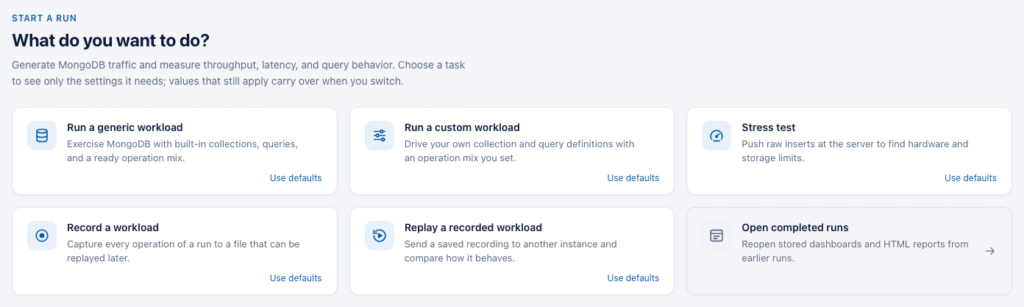
Pick a task: run a generic workload, run a custom workload with your own collections and queries, run a stress test, record a workload, replay a recorded workload, or open a completed run. Each task shows only the settings it needs, and values that still apply (your URI, workers, duration) carry over when you switch. When you choose to use defaults, it starts that task from a clean slate and keeps your connection.
Everything you used to do in config.yaml you can now do from the browser. Settings come in three levels. Basic shows what most runs need: the connection, workers, duration, load profile, definitions, seeding, and the operation mix. Turn on Advanced or Expert to see more, grouped in categories:
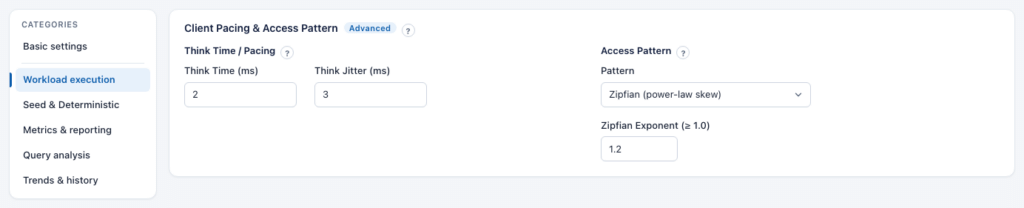
You can also save your query and collection definitions in the UI, so you don’t have to upload the same files every time you start a test. Every setting has a ? next to its name with a plain-language explanation of what happens when it’s on and when it’s off, plus its config.yaml key and environment variable. You learn the tool while you configure it. If something is wrong when you press Launch, the message shows up under the field and PLGM takes you straight to it.
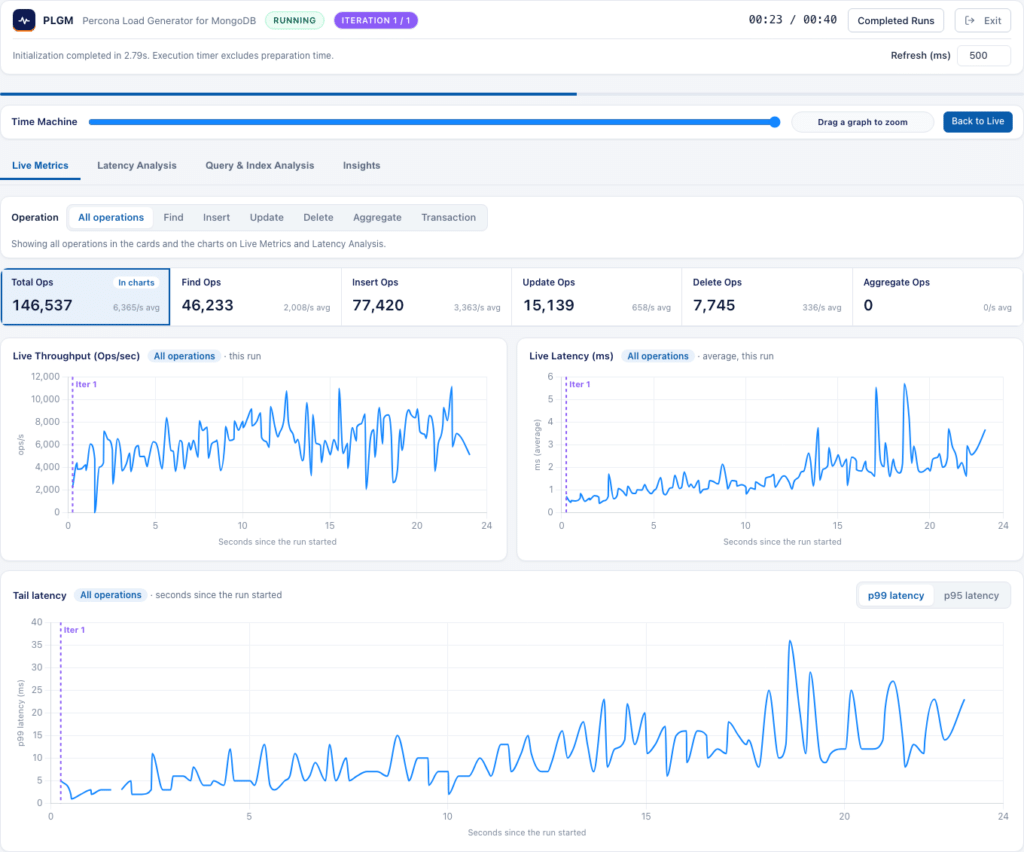
Once the workload starts, you get a live dashboard. The cards at the top show the total operations for each type. Pick an operation (All operations, Find, Insert, Update, Delete, Aggregate, or Transaction) and the cards and every chart switch to it: throughput, average latency, and tail latency (p99 or p95).
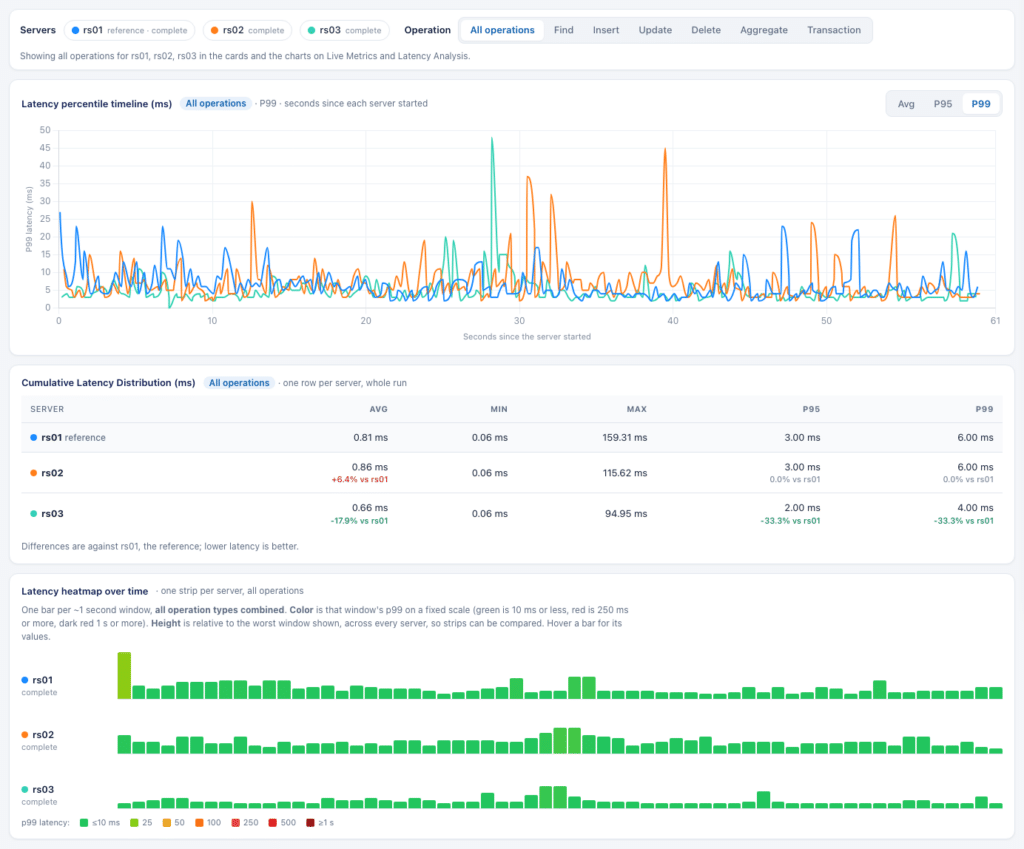
The Latency Analysis tab has a percentile timeline (average, p95, or p99), the latency distribution for the whole run, and a heatmap with one bar per second, colored by that second’s p99. Hover a bar to see its numbers.
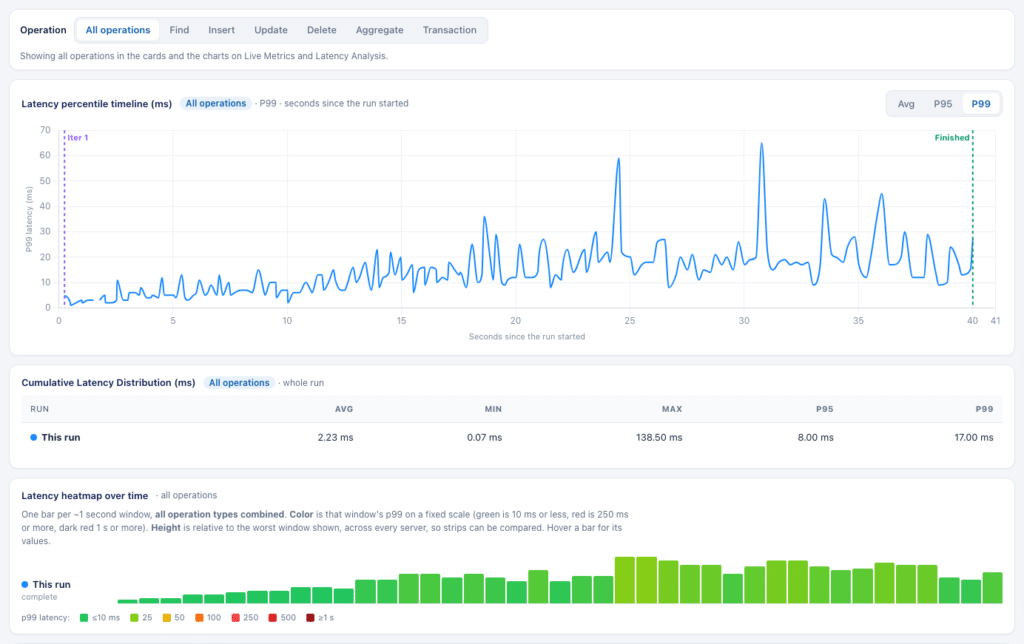
The Time Machine slider takes you back to any second of the run, and you can drag across a chart to zoom into a range. The charts then show the numbers for that range only. Finished runs are kept under Completed Runs, so you can reopen a dashboard later.
Real applications don’t run at a fixed number of threads hitting random documents. PLGM can now shape the load to look more like production:
When the run is done, you can download a JSON summary or export a self-contained HTML report you can attach to a ticket or send to a colleague.
Here’s the problem we wanted to solve. After a benchmark, you have a list of query shapes and their latencies. Latency tells you that a query is slow. It doesn’t tell you why, and it doesn’t tell you about the query that is fast today only because the collection is still small.
Think of a find on customer_email with no index behind it. On a test collection it comes back in 4 ms, so nobody looks at it. But the server is reading 50,000 documents to return 2. That query is fine until the collection grows, or until a few hundred clients run it at the same time. Latency alone will never point you at it.
So after the workload finishes, PLGM now runs explain on samples of the queries it actually executed, and reads what the server did. It looks at fast queries too, not just the ones over the slow threshold.
The results show up in the Query & Index Analysis tab, with one row per query shape.
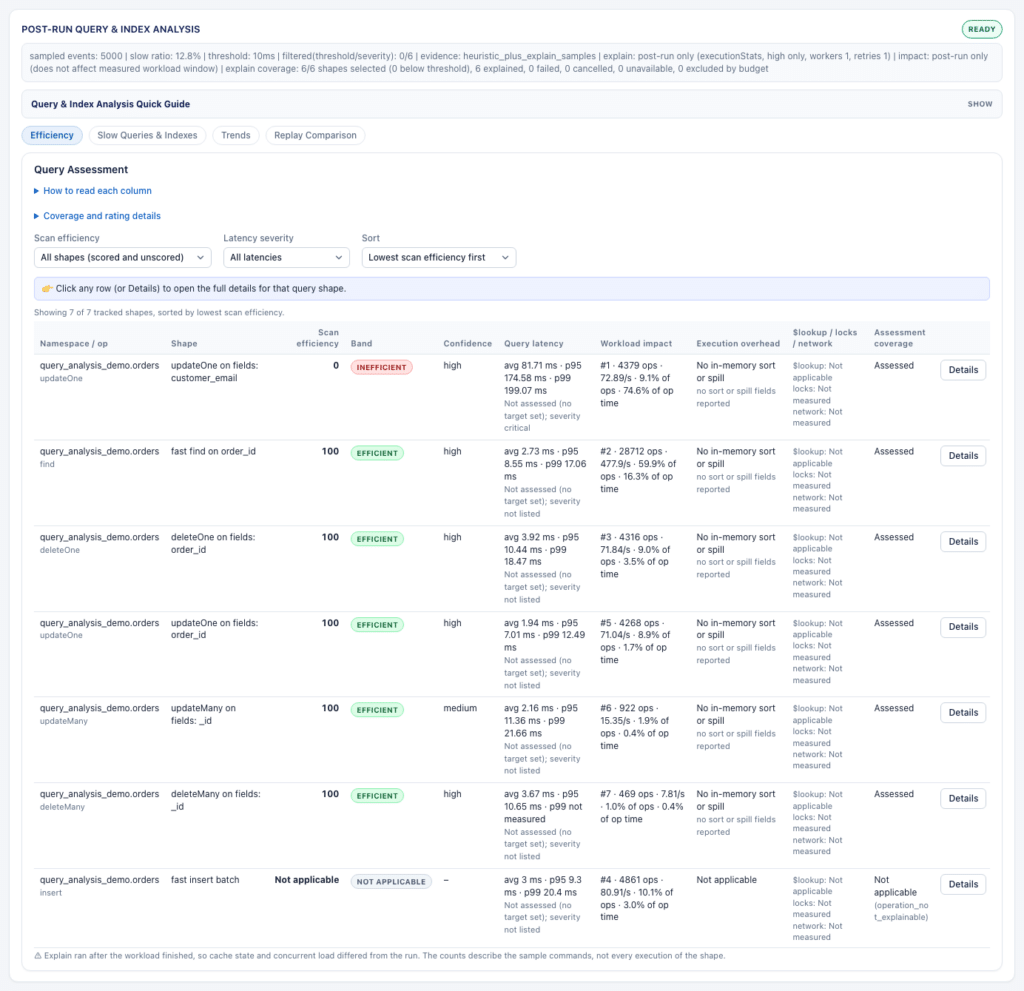
We keep each measurement in its own column. We don’t blend them into one magic number, because a single score hides more than it shows.
Scan efficiency (0 to 100, higher is better). This answers one question: how much work did the server do for each result it returned? It’s based on documents examined per result, index keys examined per result, and whether there was a collection scan where there shouldn’t be one. Roughly:
A few things we were careful about:
This score is our own rule of thumb, not an official MongoDB metric, and the UI says so.
Latency. Average and max over every operation of that shape, plus p95 and p99 when we have enough samples to make them meaningful. If you set latency targets in the settings (average, p95, p99), each shape is marked as within or above target. If you don’t set targets, we don’t make one up.
Workload impact. How many operations, operations per second, and what share of the total operation time this shape used. A query that takes 2 ms but runs 10,000 times a second can matter more than a 300 ms report that runs twice. This column tells you where the time actually goes.
Execution overhead. Did the query sort in memory? Did it spill to disk? For each sample we show sort bytes, spill counts, spilled data size, memory limit, and peak memory as reported by the server. This is the column to watch when a new version changes how memory is handled for sorts and aggregations. If a pipeline is already close to the limit on your current version, you want to know before you upgrade, not after.
$lookup work. When the explain output has the numbers, we show how many documents and keys the joined collection examined.
Click any row to see the full details for that shape: the redacted query, how the score was worked out, what each explained sample did, and the plan the server picked.
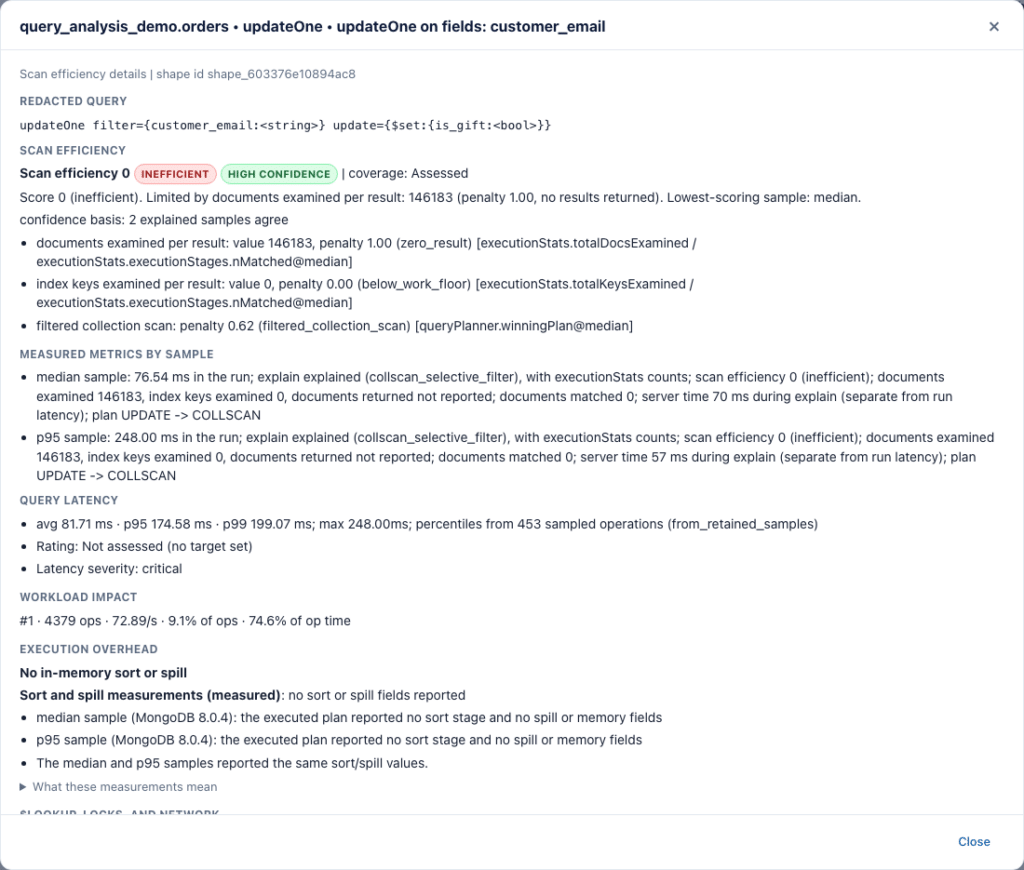
For shapes that scan too much, PLGM suggests an index. The suggested key order follows the usual rule: equality fields first, then the sort, then one range field. Before suggesting anything, it reads the indexes that actually exist on the collection, so it won’t tell you to create something you already have.
Each recommendation comes with:
That last point matters. These are suggestions to test, not changes to push to production on a Friday afternoon.
PLGM saves a short summary of each run and compares the next run against it in the Trends tab. Efficiency, latency, and impact are compared separately.
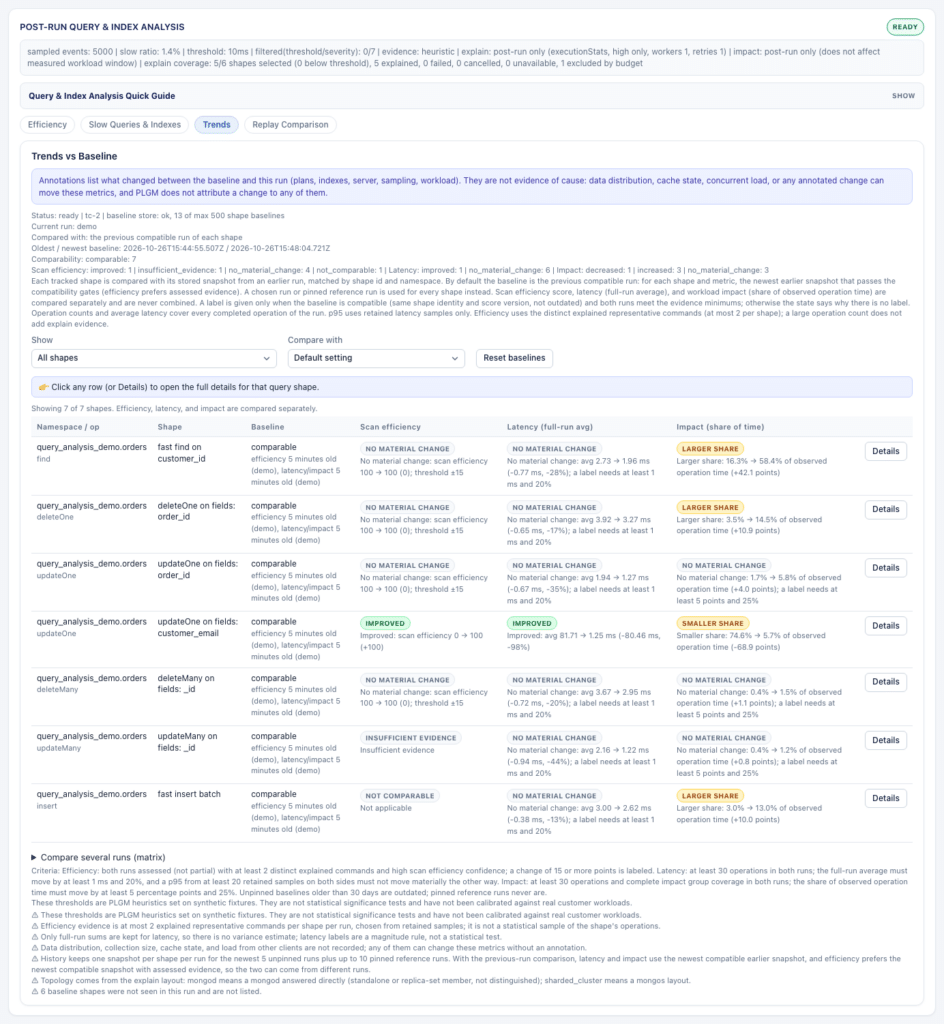
This is where upgrade testing gets practical. Run your workload against your current version, then against the new one, and look at what moved. Same for a new index or a config change. In the example above, adding an index on customer_email took that update from a scan efficiency of 0 to 100, and its average latency from 81 ms to about 1 ms. If the plan changed, the indexes changed, or the server version changed between runs, PLGM notes it next to the result, so you know what was different.
It’s also careful about what it calls a regression. If there isn’t enough data on both sides (too few operations, partial explain output, too few samples), it says “not comparable” instead of putting a red label on noise.
PLGM keeps more than the last run. By default it keeps the last five runs, and you can increase this via the UI. Each run is labeled with the server version but you can rename it. You can pin up to ten runs you want to keep around, like “7.0 baseline” or “before the new index.” Pinned runs never get cleaned up.
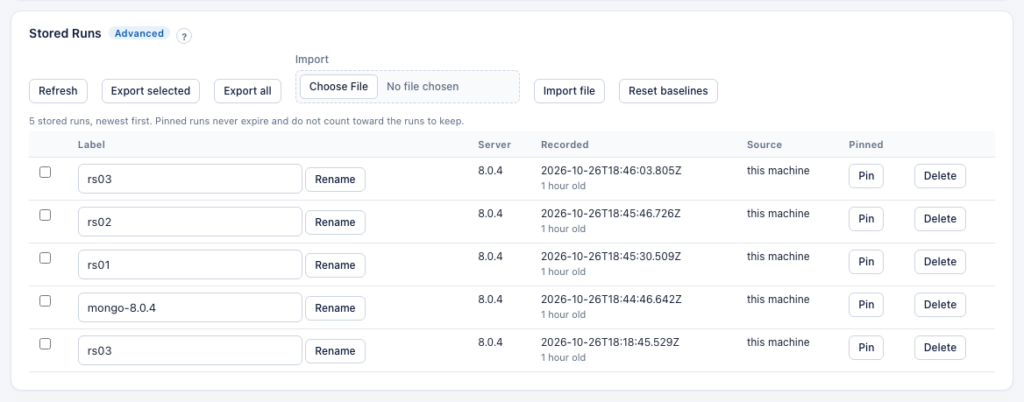
In the Trends tab you can compare against the previous run, a pinned run, or any run you’ve kept. You can also put up to eight runs side by side to see latency, p95, efficiency, and impact for each shape across all of them. If two runs can’t be compared, it tells you why. If you’re testing from more than one host or different people are working together, you can point them at the same store file, or export runs to JSON and send them to a colleague.
The analysis covers updates and deletes, not just finds and aggregations. In plenty of workloads the writes are where the time goes, and an updateMany with a bad filter can scan a whole collection just like a bad find. Writes are analyzed with explain, so PLGM never runs the actual write again to analyze it. Pipelines with $out or $merge are only planned, never executed.
I’d rather be upfront about the limits:
Comparing two runs only works if both servers did the same work. With random generated traffic, each run can use different values, which leads to different documents and different result sizes. Record & Replay addresses those use cases.
Record once, replay anywhere. Pick Record a workload and PLGM writes every operation it sends, with its exact values, to a file (during our testing, recording these values did not cause any significant delay to the actual workload being run), which you can then replay later during your next test. Every recording gets its own timestamped name, so a new one never overwrites an old one. When you pick Replay a recorded workload, PLGM lists the recordings it finds on its server and selects the newest one for you.
Deterministic traffic. If you don’t want to keep a recording file around, turn on Deterministic traffic (in Seed & Deterministic). PLGM then generates every operation from a seed. Two runs with the same settings send the same commands with the same values, and seeded data loads produce identical documents on any instance. Each run prints a traffic fingerprint, so you can prove two runs were the same.
Replay your production traffic. Point PLGM at mongod JSON logs (4.4 and later) or a system.profile export, and it turns them into a recording. Each client connection becomes a worker, with the original order and timing (anything that can’t be replayed exactly is flagged).
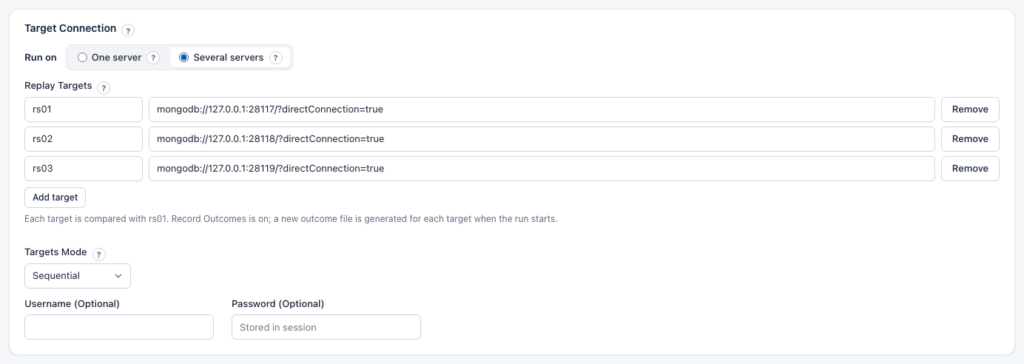
Test several versions at once. Set Run on to Several servers and list your targets, say 7.0, 8.0, and a release candidate, each with a short label and its own URI (2 to 8 servers). If the servers use different users, put each one’s username and password in its URI and leave the Username and Password fields empty. One replay (or one deterministic run) then goes to each of them, one after another or all at the same time. Before the first operation, PLGM checks that every target starts with the same document counts and indexes. Each target gets its own stats, outcome file, query analysis, and trend run, and is compared with the first automatically.
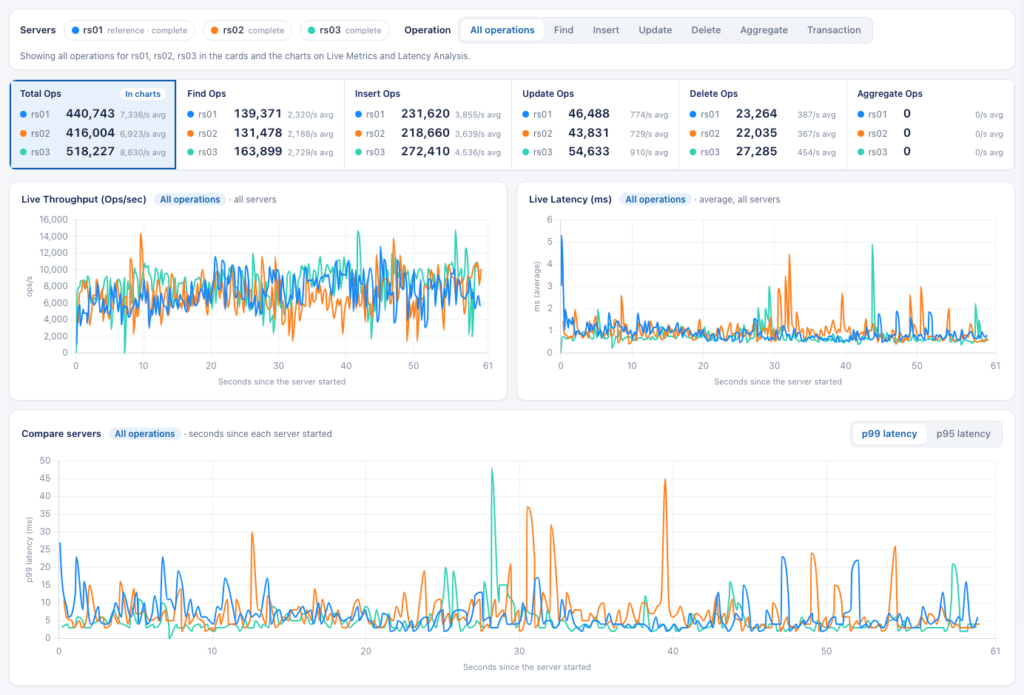
While the run goes, the dashboard draws every server on the same charts, one line per server, lined up on seconds since each server started. You can follow each server as it runs instead of waiting for the comparison at the end, hide a server with its toggle, or pick one operation type for every chart at once.
In the example above, each server ran the same deterministic workload for 60 seconds. The operation sequence is the same on all three, so a faster server simply gets through more of it in that time. On Latency Analysis, the distribution table has one row per server with its difference from the first one, and the heatmap has one strip per server on the same time axis.
PLGM can keep each operation’s result: latency, error code, documents returned or modified, and optionally a checksum of every find and aggregate result. Then Query & Index Analysis > Replay Comparison (or plgm compare-replays) lines up two executions operation by operation and shows, per query shape, latency deltas, different result counts, errors that only happen on one side, and the operations that differ the most. The comparison reports open right in your browser, and you can download them too.
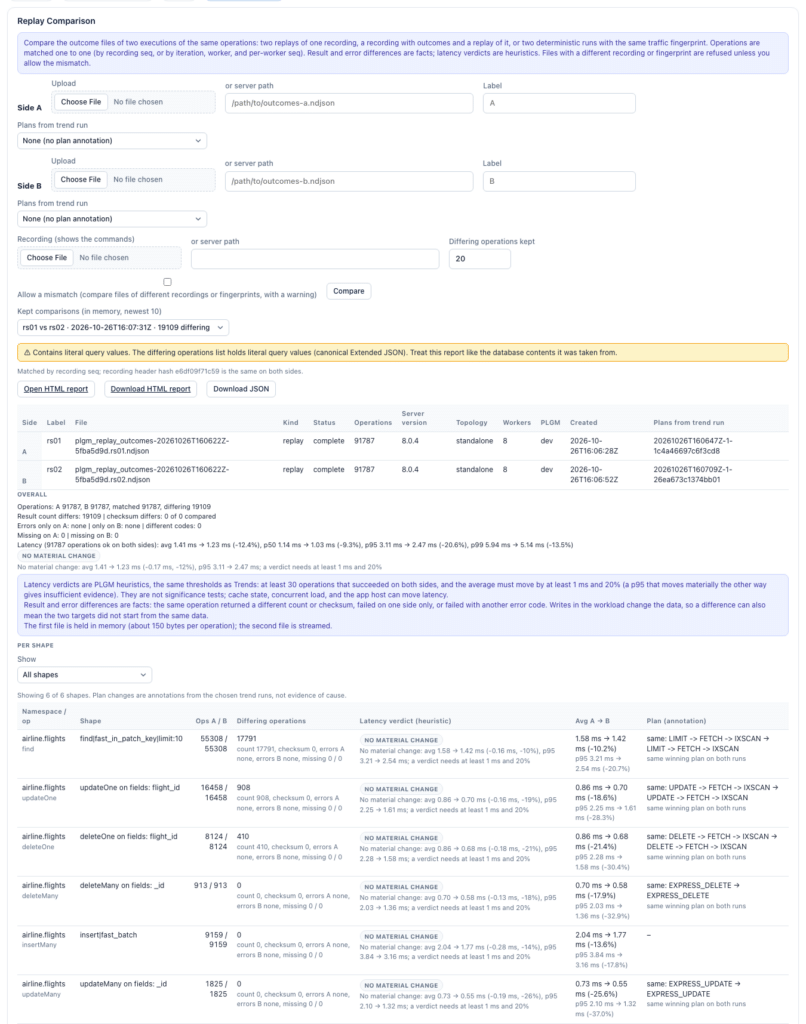
All of this is off by default. One caution: recordings and outcome files contain real query values, so handle them like production data.
Grab the latest release from the GitHub repo, extract it, and start the UI:
|
1 2 |
tar -xzvf plgm-linux-amd64.tar.gz ./plgm --webui |
Pick a task, set your connection string, and press Launch Workload.
If you want to see the analysis without writing your own queries first, the repo ships demo workloads in resources/collections/query_analysis_demo.json and resources/queries/query_analysis_demo.json. It has an orders collection with a mix of queries: some backed by good indexes, some clearly not (a lookup by customer email with no index, a sort that doesn’t match any index, an update that scans), and one report that is supposed to read the whole collection. Run it and you’ll see all three cases side by side, along with the index suggestions for the bad ones.
Then do the real test: point PLGM at your own schema and queries, run it against the version you’re on and the version you’re thinking about, and compare. That’s a much better answer to “should we upgrade?” than any vendor benchmark.
This post covered the highlights: the redesigned UI, post-run query and index analysis, trend history, and Record & Replay on one or several servers. Each feature has more options than a blog post can cover. The project documentation has a separate guide for every feature, with step-by-step instructions, the matching config.yaml settings and environment variables, and notes on limits and trade-offs. Start with the README, pick the guide for what you want to test, and run it against your own schema and queries. If you find a gap or have an idea, open an issue or send a pull request on GitHub. As always, feedback and pull requests are welcome. Stay tuned for future posts, where we’ll take a closer look at more of what PLGM can do and a more in depth look at each additional feature.
If you’ve read this far, thank you. Here’s a short video of PLGM in action: recording a workload, replaying it on three servers, comparing them on the dashboard charts, and opening the comparison report.
Resources
RELATED POSTS