In Using Percona Backup for MongoDB in Replica Set and Sharding Environment: Part One, I demonstrated a basic Percona Backup for MongoDB (PBM) setup under the Replica Set and Sharding environment. Now, here we will see some advanced stuff and other backup/restore options available with PBM.
Let’s discuss each one.
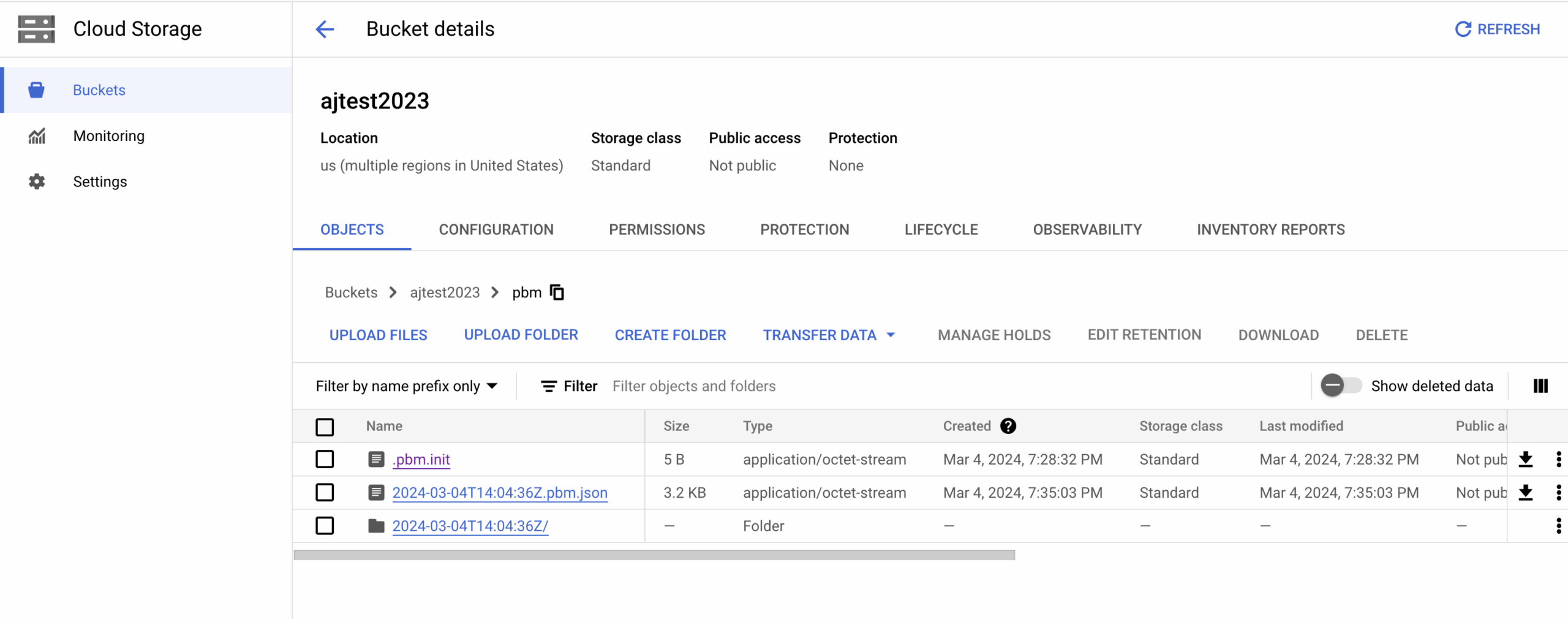
In order to take backups on remote cloud storage such as Google Bucket or S3, we can define the below configurations in the PBM configuration file:- [/etc/pbm_config.yaml].
|
1 2 3 4 5 6 7 8 9 10 |
storage: type: s3 s3: region: us-west-2 bucket: ajtest2023 prefix: pbm endpointUrl: https://storage.googleapis.com credentials: access-key-id: xxxxxxxxxx secret-access-key: xxxxxxxxx |
Once we reload the configurations, we are good to take our backup on the cloud.
|
1 |
shell> pbm config --file /etc/pbm_config.yaml |
|
1 2 |
shell> pbm backup Starting backup '2024-03-04T14:04:36Z'....Backup '2024-03-04T14:04:36Z' to remote store 's3://https://storage.googleapis.com/ajtest2023/pbm' has started |
For physical backups, we have some options to tweak them in order to make the download/restoration process a little faster based on our hardware resources.
In the PBM configuration file[/etc/pbm_config.yaml] we can define the below options in the restore section.
|
1 2 3 4 |
restore: numDownloadWorkers: 4 maxDownloadBufferMb: 128 downloadChunkMb: 32 |
Incremental backups are supported for physical type backups only. Also It works only with Percona Server for MongoDB (PSMDB) as the upstream MongoDB Community version doesn’t have support for physical backups yet. During incremental backups, Percona Backup for MongoDB saves only the data that was changed after the previous backup was taken.
In order to run the PBM incremental backups, we need to have a base incremental backup as a seed.
|
1 |
shell> pbm backup --type incremental --base |
|
1 2 |
Backup snapshots: 2024-03-04T14:30:21Z <incremental, base> [restore_to_time: 2024-03-04T14:30:24Z] |
Now, we can take further Incremental backups as below.
|
1 |
shell> pbm backup --type incremental |
|
1 2 3 |
Backup snapshots: 2024-03-04T14:30:21Z <incremental, base> [restore_to_time: 2024-03-04T14:30:24Z] 2024-03-04T14:32:00Z <incremental> [restore_to_time: 2024-03-04T14:32:03Z] |
The restore approach will be the same as we do for full backups. All we need to do is run the below command.
|
1 |
shell> pbm restore backup_name |
Note:- PBM automatically recognizes the backup type, finds the base Incremental backup, restores the data from it, and then restores the modified data from applicable incremental backups.
Additionally, we have to take a few considerations in the case of physical backup restoration. We have to perform below additional steps after the restoration.
PBM also supports PITR (point in time recovery) via oplog. When PITR is enabled, we can see the oplog slices based on the value of [oplogSpanMin], which by default is (10mins). So, the first chunk will appear after 10 min.
Let’s see how we can enable the PITR via the command line.
|
1 2 |
shell>pbm config --set pitr.enabled=true [pitr.enabled=true] |
In the configuration file [/etc/pbm_config.yaml] we can define the same as below.
|
1 2 |
pitr: enabled: true |
|
1 |
shell> pbm config --file /etc/pbm_config.yaml |
So we have now the below PITR chunks available.
|
1 |
shell> pbm list |
|
1 2 3 4 5 6 7 |
Backup snapshots: 2024-03-04T14:04:36Z <logical> [restore_to_time: 2024-03-04T14:04:52Z] 2024-03-04T14:30:21Z <incremental, base> [restore_to_time: 2024-03-04T14:30:24Z] 2024-03-04T14:32:00Z <incremental> [restore_to_time: 2024-03-04T14:32:03Z] PITR <on>: 2024-03-04T14:32:04Z - 2024-03-04T15:03:05Z |
In order to restore the PITR we can run the below steps.
A) Stop point-in-time recovery if enabled.
|
1 |
shell> pbm config --set pitr.enabled=false |
B) Restore the oplog as per the required point-in-time.
|
1 2 |
shell> pbm oplog-replay --start="2024-03-04T14:32:04" --end="2024-03-04T15:03:18" Starting oplog replay '2024-03-04T14:32:04 - 2024-03-04T15:03:18'...Oplog replay "2024-03-04T15:13:44.517206788Z" has started |
Also we can use the direct restore command by specifying the required point-in-time. This will automatically fetch the events based on the available oplog slices.
|
1 |
shell> pbm restore --time="2024-03-04T15:03:18" |
Once the restoration is complete, we can again enable the PITR as below.
|
1 |
pbm backup |
|
1 |
pbm config --set pitr.enabled=true |
PBM also supports selective/partial backup specific to the collection.
So, here we are taking backup for the collection [emp] residing in schema.
|
1 2 |
shell> pbm backup --ns=test.emp Starting backup '2024-03-05T10:34:45Z'....Backup '2024-03-05T10:34:45Z' to remote store 's3://https://storage.googleapis.com/ajtest2023/pbm' has started |
|
1 2 |
shell> pbm list 2024-03-05T10:34:45Z <logical, selective> [restore_to_time: 2024-03-05T10:34:51Z] |
Also, we can take the entire collection backups inside a database using the below command.
|
1 |
shell> pbm backup --ns=test.* |
We can restore the selective backup with the help of the below command.
|
1 2 |
shell> pbm restore 2024-03-07T17:05:40Z --ns test.emp Starting restore 2024-03-07T17:08:59.103233478Z from '2024-03-07T17:05:40Z'...Restore of the snapshot from '2024-03-07T17:05:40Z' has started |
PBM backup, by default, will use the secondary nodes for backup based on election, and in case no secondaries respond, then the backup will be initiated on the primary. We can also control the election behavior by defining a priority for Mongo nodes in the configuration file [/etc/pbm_config.yaml].
|
1 2 3 4 |
backup: priority: localhost:27019: 2.5 localhost:28021: 2.5 |
Then, apply the changes.
|
1 |
shell> pbm config --file /etc/pbm_config.yaml |
Note:- The other remaining nodes will be automatically assigned priority 1.0. The node with the highest priority initiates the backup. If that node is unavailable, the next priority node is selected. If there are several nodes with the same priority, one of them is randomly elected to make the backup.
Hidden nodes will always have a higher priority in comparison to other secondary nodes if we do not set any priority explcitly.
With the help of the [describe-backup] command, we can also verify the node ran and kept the backup.
|
1 |
shell> pbm describe-backup 2024-03-05T10:38:59Z |
|
1 2 3 4 5 6 7 8 9 10 11 12 13 14 15 16 17 |
replsets: - name: shardA status: done node: localhost:27019 last_write_time: "2024-03-05T10:39:02Z" last_transition_time: "2024-03-05T10:39:13Z" - name: configRepl status: done node: localhost:27022 last_write_time: "2024-03-05T10:39:04Z" last_transition_time: "2024-03-05T10:39:07Z" configsvr: true - name: shardB status: done node: localhost:27020 last_write_time: "2024-03-05T10:38:47Z" last_transition_time: "2024-03-05T10:39:15Z" |
PBM also provided an easy interface/mechanism to perform snapshots OR point-in-time copies of physical files. Snapshot-based backups are useful in the case of large data sets with terabytes of data, as the restoration is quite fast and allows immediate access to data.
The flow of snapshot-based backup would be as below:
Now, let’s see how we can perform the backup/restoration in case of snapshot-based backup.
1) First, we will initiate/prepare a backup.
|
1 |
shell>pbm backup -t external |
|
1 2 3 4 5 |
Starting backup '2024-03-06T14:34:35Z'...........Ready to copy data from: - localhost:27022 - localhost:27019 - localhost:27020 After the copy is done, run: pbm backup-finish 2024-03-06T14:34:35Z |
PBM does the following things behind the scenes:
2) Next, we can copy the MongoDB data directory contents to the target storage. In our case we used a simple copy command to the local storage as we had the complete setup on the local environment.
|
1 2 3 |
shell> cp -R /home/vagrant/data/data/configRepl/rs1/db/home/vagrant/data/data/configRepl/rs1/db_backup shell> cp -R /home/vagrant/data/data/shardA/rs2/db/home/vagrant/data/data/shardA/rs2/db_backup shell> cp -R /home/vagrant/data/data/shardB/rs1/db/home/vagrant/data/data/shardB/rs1/db_backup |
3) Now, we can close the running backup cursor.
|
1 |
shell> pbm backup-finish 2024-03-06T14:34:35Z |
Before we perform the restore steps we need to ensure the below things.
1. Then, we can execute the restore command as below. Here PBM stops the database, cleans up data directories on all nodes, provides the restore name, and prompts you to copy the data.
|
1 |
shell> pbm restore --external |
|
1 2 3 4 |
Starting restore 2024-03-06T14:40:10.675746407Z from [external]................................Ready to copy data to the nodes data directory. After the copy is done, run: pbm restore-finish 2024-03-06T14:40:10.675746407Z -c </path/to/pbm.conf.yaml> Check restore status with: pbm describe-restore 2024-03-06T14:40:10.675746407Z -c </path/to/pbm.conf.yaml> No other pbm command is available while the restore is running! |
So, post the event completion, the original data directory will be cleaned completely.
|
1 2 3 4 5 6 |
shell> ls -lh /home/vagrant/data/data/configRepl/rs1/db total 0 shell> ls -lh /home/vagrant/data/data/shardA/rs2/db total 0 shell> ls -lh /home/vagrant/data/data/shardB/rs1/db total 0 |
2. Now, we are good at copying that snapshot or physical file backup we took in the backup process.
|
1 2 3 |
shell> cp -R /home/vagrant/data/data/configRepl/rs1/db_backup/* /home/vagrant/data/data/configRepl/rs1/db/ shell> cp -R /home/vagrant/data/data/shardA/rs2/db_backup/* /home/vagrant/data/data/shardA/rs2/db/ shell> cp -R /home/vagrant/data/data/shardB/rs1/db_backup/* /home/vagrant/data/data/shardB/rs1/db/ |
Note:- Please also make sure the data directory has the [mongod] user permissions along with the Read/Write access.
3. Post the completion of the data copy process we can close the restoration process as below.
|
1 |
shell> pbm restore-finish 2024-03-06T14:40:10.675746407Z -c /etc/pbm_config.yaml |
Once all the above steps are done, we can perform the post-restoration steps.
The database is accessible again successfully now once the service is up.
|
1 2 3 4 5 6 7 8 9 10 11 12 |
[root@localhost ~]# mongo --port 27017 Percona Server for MongoDB shell version v5.0.22-19 connecting to: mongodb://127.0.0.1:27017/?compressors=disabled&gssapiServiceName=mongodb Implicit session: session { "id" : UUID("5b0a02ad-6ebc-45c7-b215-b997602143f7") } Percona Server for MongoDB server version: v5.0.22-19 ================ .... mongos> show dbs admin 0.004GB config 0.003GB test 0.000GB .... |
In part two, we have seen some other backup options available with PBM. Also, we talk about how we can perform point-in-time-recovery using Oplog events. Please note that Selective and Snapshot-based backups are still under the [Technical Review] phase, so it’s better to test them properly before considering using them in production.
Percona Distribution for MongoDB is a source-available alternative for enterprise MongoDB. A bundling of Percona Server for MongoDB and Percona Backup for MongoDB, Percona Distribution for MongoDB combines the best and most critical enterprise components from the open source community into a single feature-rich and freely available solution.
Resources
RELATED POSTS