

In this blog, we will see how to configure Percona Monitoring and Management (PMM) monitoring for a MongoDB cluster. It’s very simple, like adding a replica set or standalone instances to PMM Monitoring.
For this example, I have used docker to create PMM Server and MongoDB sharded cluster containers. If you want the steps I used to create the MongoDB® cluster environment using docker, I have shared them at the end of this blog. You can refer to this if you would like to create the same set up.
For PMM installations, you can check these links for PMM installation and pmm-client setup. The following are the members of the MongoDB cluster:
|
1 2 3 4 5 6 7 8 9 10 11 12 13 14 15 16 17 |
mongos: mongos1 config db: (replSet name - mongors1conf) mongocfg1 mongocfg2 mongocfg3 Shard1: (replSet name - mongors1) mongors1n1 mongors1n2 mongors1n3 Shard1: (replSet name - mongors2) mongors2n1 mongors2n2 mongors2n3 |
In this setup, I installed the pmm-client on mongos1 server. Then I added an agent to monitor MongoDB metrics with cluster option as shown in the next code block. I named the cluster “mongoClusterPMM” (Note: you have to be root user or need sudo access to execute the pmm-admin command):
|
1 2 3 4 5 6 7 8 9 10 11 12 13 14 15 16 17 18 19 20 21 |
root@90262f1360a0:/# pmm-admin add mongodb --cluster mongoClusterPMM [linux:metrics] OK, now monitoring this system. [mongodb:metrics] OK, now monitoring MongoDB metrics using URI localhost:27017 [mongodb:queries] OK, now monitoring MongoDB queries using URI localhost:27017 [mongodb:queries] It is required for correct operation that profiling of monitored MongoDB databases be enabled. [mongodb:queries] Note that profiling is not enabled by default because it may reduce the performance of your MongoDB server. [mongodb:queries] For more information read PMM documentation (https://www.percona.com/doc/percona-monitoring-and-management/conf-mongodb.html). root@90262f1360a0:/# pmm-admin list pmm-admin 1.11.0 PMM Server | 172.17.0.2 (password-protected) Client Name | 90262f1360a0 Client Address | 172.17.0.4 Service Manager | unix-systemv ---------------- ------------- ----------- -------- ---------------- ------------------------ SERVICE TYPE NAME LOCAL PORT RUNNING DATA SOURCE OPTIONS ---------------- ------------- ----------- -------- ---------------- ------------------------ mongodb:queries 90262f1360a0 - YES localhost:27017 query_examples=true linux:metrics 90262f1360a0 42000 YES - mongodb:metrics 90262f1360a0 42003 YES localhost:27017 cluster=mongoClusterPMM root@90262f1360a0:/# |
As you can see, I used the pmm-admin add mongodb [options] command which enables monitoring for system, MongoDB metrics and queries. You need to enable profiler to monitor MongoDB queries. Use the next command to enable it at database level:
|
1 2 |
use db_name db.setProfilingLevel(1) |
Check this blog to know more about QAN setup and details. If you want to enable only MongoDB metrics, rather than queries to be monitored, then you can use the command pmm-admin add mongodb:metrics [options] . After this, go to the PMM homepage (in my case localhost:8080) in your browser and select MongoDB Cluster Summary from the drop down list under the MongoDB option. The below screenshot shows the MongoDB Cluster—”mongoClusterPMM” statistics— collected by the agent that we added in mongos1 server.
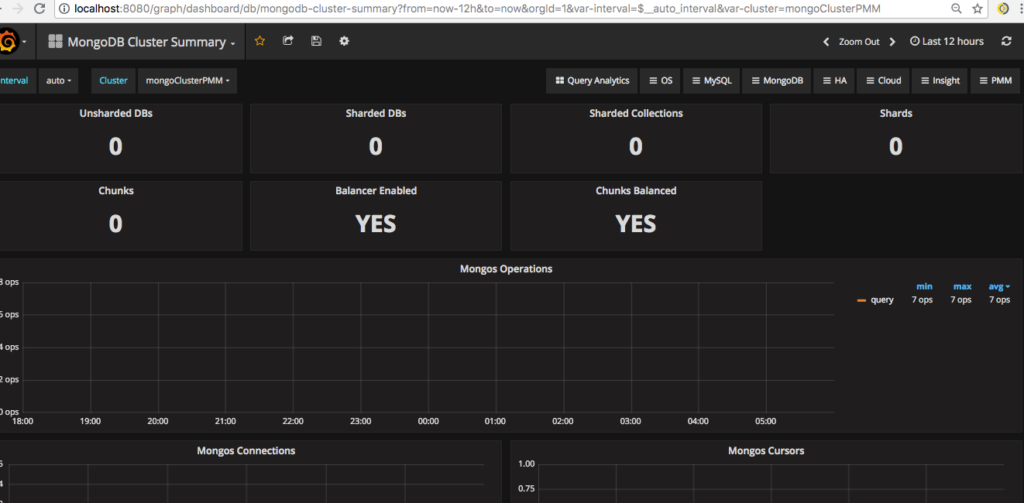
Did we miss something here? And do you see any metrics in the dashboard above except “Balancer Enabled” and “Chunks Balanced”?
No. This is because, PMM doesn’t have enough data to show in the dashboard. The shards are not added to the cluster yet and as you can see it displays 0 under shards. Let’s add two shard replica sets mongors1 and mongors2 in the mongos1 instance, and enable sharding to the database to complete the cluster setup as follows:
|
1 2 3 4 |
mongos> sh.addShard("mongors1/mongors1n1:27017,mongors1n2:27017,mongors1n3:27017") { "shardAdded" : "mongors1", "ok" : 1 } mongos> sh.addShard("mongors2/mongors2n1:27017,mongors2n2:27017,mongors2n3:27017") { "shardAdded" : "mongors2", "ok" : 1 } |
Now, I’ll add some data, collection and shard keys, and enable sharding so that we can see some statistics in the dashboard:
|
1 2 3 4 5 6 7 |
use vinodh db.setProfilingLevel(1) db.testColl.insertMany([{id1:1,name:"test insert"},{id1:2,name:"test insert"},{id1:3,name:"insert"},{id1:4,name:"insert"}]) db.testColl.ensureIndex({id1:1}) sh.enableSharding("vinodh") sh.shardCollection("vinodh.testColl", {id1:1}) |
At last! Now you can see statistics in the graph for the MongoDB cluster:
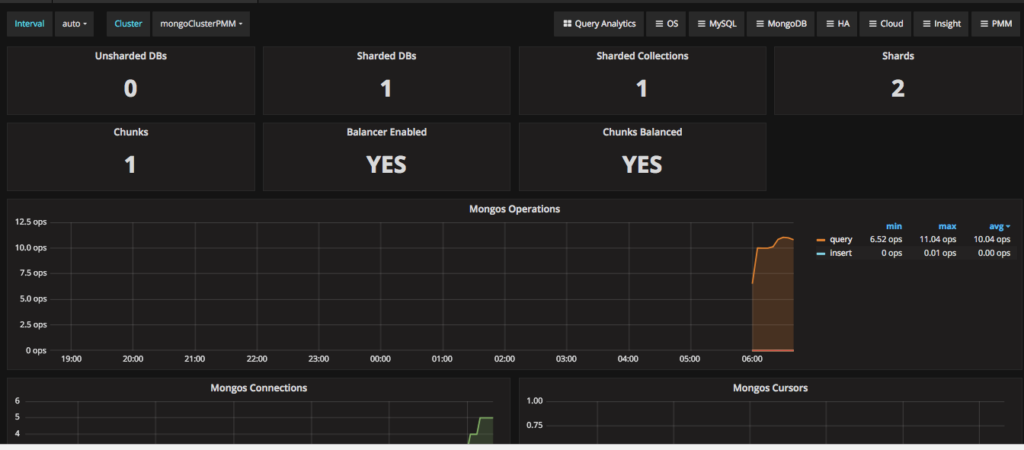
We are not done yet. We have just added an agent to monitor mongos1 instance, and so only the cluster related statistics and QAN are collected through this node. For monitoring all nodes in the MongoDB cluster, we need to configure all nodes in PMM under “mongoClusterPMM” cluster. This will tell PMM that the configured nodes are part of the same cluster. We could also monitor the replica set related metrics for the members in config DBs and shards. Let’s add the monitoring agents in mongos1 server to monitor all MongoDB instances remotely. We’ll use these commands:
|
1 2 3 4 5 6 7 8 9 |
pmm-admin add mongodb:metrics --uri "mongodb://mongocfg1:27017/admin?replicaSet=mongors1conf" mongocfg1replSet --cluster mongoClusterPMM pmm-admin add mongodb:metrics --uri "mongodb://mongocfg2:27017/admin?replicaSet=mongors1conf" mongocfg2replSet --cluster mongoClusterPMM pmm-admin add mongodb:metrics --uri "mongodb://mongocfg3:27017/admin?replicaSet=mongors1conf" mongocfg3replSet --cluster mongoClusterPMM pmm-admin add mongodb:metrics --uri "mongodb://mongors1n1:27017/admin?replicaSet=mongors1" mongors1replSetn1 --cluster mongoClusterPMM pmm-admin add mongodb:metrics --uri "mongodb://mongors1n2:27017/admin?replicaSet=mongors1" mongors1replSetn2 --cluster mongoClusterPMM pmm-admin add mongodb:metrics --uri "mongodb://mongors1n3:27017/admin?replicaSet=mongors1" mongors1replSetn3 --cluster mongoClusterPMM pmm-admin add mongodb:metrics --uri "mongodb://mongors2n1:27017/admin?replicaSet=mongors2" mongors2replSetn1 --cluster mongoClusterPMM pmm-admin add mongodb:metrics --uri "mongodb://mongors2n2:27017/admin?replicaSet=mongors2" mongors2replSetn2 --cluster mongoClusterPMM pmm-admin add mongodb:metrics --uri "mongodb://mongors2n3:27017/admin?replicaSet=mongors2" mongors2replSetn3 --cluster mongoClusterPMM |
Once you have added them, you can check the agent’s (mongodb-exporter) status as follows:
|
1 2 3 4 5 6 7 8 9 10 11 12 13 14 15 16 17 18 19 20 21 22 |
root@90262f1360a0:/# pmm-admin list pmm-admin 1.11.0 PMM Server | 172.17.0.2 (password-protected) Client Name | 90262f1360a0 Client Address | 172.17.0.4 Service Manager | unix-systemv ---------------- ------------------ ----------- -------- ----------------------- ------------------------ SERVICE TYPE NAME LOCAL PORT RUNNING DATA SOURCE OPTIONS ---------------- ------------------ ----------- -------- ----------------------- ------------------------ mongodb:queries 90262f1360a0 - YES localhost:27017 query_examples=true linux:metrics 90262f1360a0 42000 YES - mongodb:metrics 90262f1360a0 42003 YES localhost:27017 cluster=mongoClusterPMM mongodb:metrics mongocfg1replSet 42004 YES mongocfg1:27017/admin cluster=mongoClusterPMM mongodb:metrics mongocfg2replSet 42005 YES mongocfg2:27017/admin cluster=mongoClusterPMM mongodb:metrics mongocfg3replSet 42006 YES mongocfg3:27017/admin cluster=mongoClusterPMM mongodb:metrics mongors1replSetn1 42007 YES mongors1n1:27017/admin cluster=mongoClusterPMM mongodb:metrics mongors1replSetn3 42008 YES mongors1n3:27017/admin cluster=mongoClusterPMM mongodb:metrics mongors2replSetn1 42009 YES mongors2n1:27017/admin cluster=mongoClusterPMM mongodb:metrics mongors2replSetn2 42010 YES mongors2n2:27017/admin cluster=mongoClusterPMM mongodb:metrics mongors2replSetn3 42011 YES mongors2n3:27017/admin cluster=mongoClusterPMM mongodb:metrics mongors1replSetn2 42012 YES mongors1n2:27017/admin cluster=mongoClusterPMM |
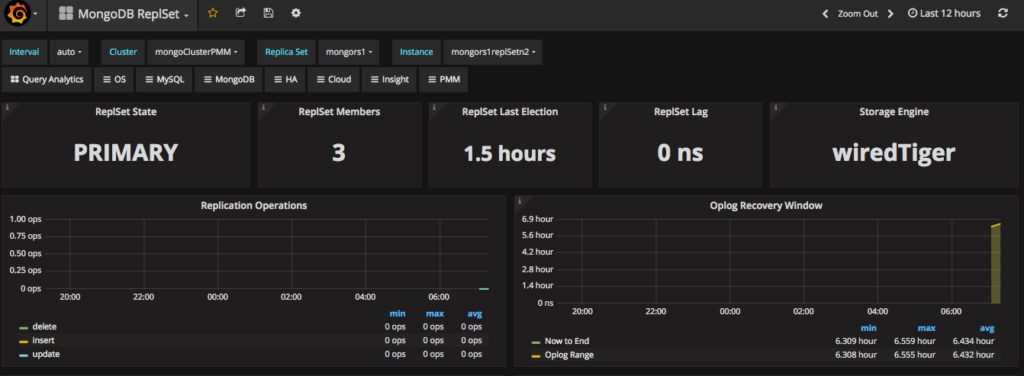
So now you can monitor every member of the MongoDB cluster including their replica set and shard statistics. The next screenshot shows one of the members from the replica set under MongoDB replica set dashboard. You can select this from dashboard in this way: Cluster: mongoClusterPMM → Replica Set: mongors1 → Instance: mongors1replSetn2]:
As I said in the beginning of this blog, I’ve provided the steps for the MongoDB cluster setup. Since this is for testing, I have used very simple configuration to setup the cluster environment using docker-compose. Before creating the MongoDB cluster, create the network in docker for the cluster nodes and PMM to connect each other like this:
|
1 2 |
Vinodhs-MBP:docker-mcluster vinodhkrish$ docker network create mongo-cluster-nw 7e3203aed630fed9b5f5f2b30e346301a58a068dc5f5bc0bfe38e2eef1d48787 |
I used the docker-compose.yaml file to create the docker environment here:
|
1 2 3 4 5 6 7 8 9 10 11 12 13 14 15 16 17 18 19 20 21 22 23 24 25 26 27 28 29 30 31 32 33 34 35 36 37 38 39 40 41 42 43 44 45 46 47 48 49 50 51 52 53 54 55 56 57 58 59 60 61 62 63 64 65 66 67 68 69 70 71 72 73 74 75 76 77 78 79 80 81 82 83 84 85 86 87 88 89 90 91 92 93 94 95 96 97 98 99 100 101 102 103 104 105 106 107 108 109 110 111 112 113 114 115 116 117 118 119 120 121 122 123 124 125 126 127 |
version: '2' services: mongors1n1: container_name: mongors1n1 image: mongo:3.4 command: mongod --shardsvr --replSet mongors1 --dbpath /data/db --port 27017 networks: - mongo-cluster ports: - 27047:27017 expose: - "27017" environment: TERM: xterm mongors1n2: container_name: mongors1n2 image: mongo:3.4 command: mongod --shardsvr --replSet mongors1 --dbpath /data/db --port 27017 networks: - mongo-cluster ports: - 27048:27017 expose: - "27017" environment: TERM: xterm mongors1n3: container_name: mongors1n3 image: mongo:3.4 command: mongod --shardsvr --replSet mongors1 --dbpath /data/db --port 27017 networks: - mongo-cluster ports: - 27049:27017 expose: - "27017" environment: TERM: xterm mongors2n1: container_name: mongors2n1 image: mongo:3.4 command: mongod --shardsvr --replSet mongors2 --dbpath /data/db --port 27017 networks: - mongo-cluster ports: - 27057:27017 expose: - "27017" environment: TERM: xterm mongors2n2: container_name: mongors2n2 image: mongo:3.4 command: mongod --shardsvr --replSet mongors2 --dbpath /data/db --port 27017 networks: - mongo-cluster ports: - 27058:27017 expose: - "27017" environment: TERM: xterm mongors2n3: container_name: mongors2n3 image: mongo:3.4 command: mongod --shardsvr --replSet mongors2 --dbpath /data/db --port 27017 networks: - mongo-cluster ports: - 27059:27017 expose: - "27017" environment: TERM: xterm mongocfg1: container_name: mongocfg1 image: mongo:3.4 command: mongod --configsvr --replSet mongors1conf --dbpath /data/db --port 27017 networks: - mongo-cluster ports: - 27025:27017 environment: TERM: xterm expose: - "27017" mongocfg2: container_name: mongocfg2 image: mongo:3.4 command: mongod --configsvr --replSet mongors1conf --dbpath /data/db --port 27017 networks: - mongo-cluster ports: - 27024:27017 environment: TERM: xterm expose: - "27017" mongocfg3: container_name: mongocfg3 image: mongo:3.4 command: mongod --configsvr --replSet mongors1conf --dbpath /data/db --port 27017 networks: - mongo-cluster ports: - 27023:27017 environment: TERM: xterm expose: - "27017" mongos1: container_name: mongos1 image: mongo:3.4 depends_on: - mongocfg1 - mongocfg2 command: mongos --configdb mongors1conf/mongocfg1:27017,mongocfg2:27017,mongocfg3:27017 --port 27017 networks: - mongo-cluster ports: - 27019:27017 expose: - "27017" networks: mongo-cluster: external: name: mongo-cluster-nw |
Hint:
In the docker compose file, above, if you are using docker-compose version >=3.x, then you can use the option for “networks” in the yaml file like this:
|
1 2 3 |
networks: mongo-cluster: name: mongo-cluster-nw |
Now start the containers and configure the cluster quickly as follows:
|
1 2 3 4 5 6 7 8 9 10 11 |
Vinodhs-MBP:docker-mcluster vinodhkrish$ docker-compose up -d Creating mongocfg1 ... Creating mongos1 ... Creating mongors2n3 ... Creating mongocfg2 ... Creating mongors1n1 ... Creating mongocfg3 ... Creating mongors2n2 ... Creating mongors1n3 ... Creating mongors2n1 ... Creating mongors1n2 ... |
|
1 2 3 4 5 |
Vinodhs-MBP:docker-mcluster vinodhkrish$ docker exec -it mongocfg1 mongo --quiet > rs.initiate({ _id: "mongors1conf",configsvr: true, ... members: [{ _id:0, host: "mongocfg1" },{_id:1, host: "mongocfg2" },{ _id:2, host: "mongocfg3"}] ... }) { "ok" : 1 } |
|
1 2 3 |
Vinodhs-MBP:docker-mcluster vinodhkrish$ docker exec -it mongors1n1 mongo --quiet > rs.initiate( { _id: "mongors1", members:[ {_id: 0, host: "mongors1n1"}, {_id:1, host: "mongors1n2"}, {_id:2, host: "mongors1n3"}] }) { "ok" : 1 } |
|
1 2 3 |
Vinodhs-MBP:docker-mcluster vinodhkrish$ docker exec -it mongors2n1 mongo --quiet > rs.initiate({ _id: "mongors2", members: [ { _id: 0, host: "mongors2n1"}, { _id:1, host: "mongors2n2"}, { _id:2, host: "mongors2n3"}] }) { "ok" : 1 } |
I hope that this blog helps you to setup a MongoDB cluster and also to configure PMM to monitor it! Have a great day!
Resources
RELATED POSTS




I am unable to understand how to configure PMM dashboard for an existing replicaset without any shards . I tried adding them using uri but on the dashboard they show up as individual servers and I am unable to see any instances in the mongo replicaset dashboard.
Hi Lalit, can I get you to post this question to the Forum and I will follow up with it there? Only it’s easier to collect the detailed information that we might need to help you out, and also the responses there are more easily found by users with the same problem. Here is the link https://www.percona.com/forums/ please be sure to add environment and version information plus any other info that might help track your answer down. Thank you!
Hi Lorraine, I have raised the question in the forums as suggested. But it is not showing up on the forum I believe it takes some time to be visible.
I’ve pushed that through the Forum for you now
Hi Vinodh,
I am trying to setup PMM for my staging ENV. But when we run the following command on client node
pmm-admin add mongodb –uri mongodb://user:passwrd@localhost:27017/admin –cluster mongoClusterPMM
We get the following error in the log file /var/log/pmm-mongodb-metrics-42003.log
time=”2018-09-14T19:31:25+05:30″ level=error msg=”Failed to execute find query on ‘config.locks’: not found.” source=”sharding_status.go:106″
time=”2018-09-14T19:31:25+05:30″ level=info msg=”Starting HTTPS server for https://172.17.0.1:42003/metrics …” source=”server.go:106″
Can you please help me on this.
We are using Mongodb 3.6.2 version