
Configuring and managing backups is one of the top priorities among the many tasks we deal with daily in our database instances.
In this context, it’s not rare to see deployments with more than one mongod process running per node, creating a multi-instance environment.
Although this approach is highly discouraged due to the potential risk of compromising your business’s availability, there are scenarios where such a configuration makes sense.
If you have a setup where a host runs more than one mongod process and you’re looking at how to properly configure Percona Backup for MongoDB (PBM) on that, this article will guide you through that scenario.
Before getting started, this article assumes two prior conditions:
Those pre-conditions are crucial for the brevity and straightforwardness of the article.
Environment:
The environment and how you have configured your multi-instance node can vary heavily depending on your objectives.
For example, you might have a host with two mongod processes while a second one holds three more. Or if you have a Sharded Cluster, you might also spread your instances in only three hosts.
To eliminate such an infinite possibility, we will be using a single host that holds the entire Replica Set of tree nodes as illustrated in the following diagram:
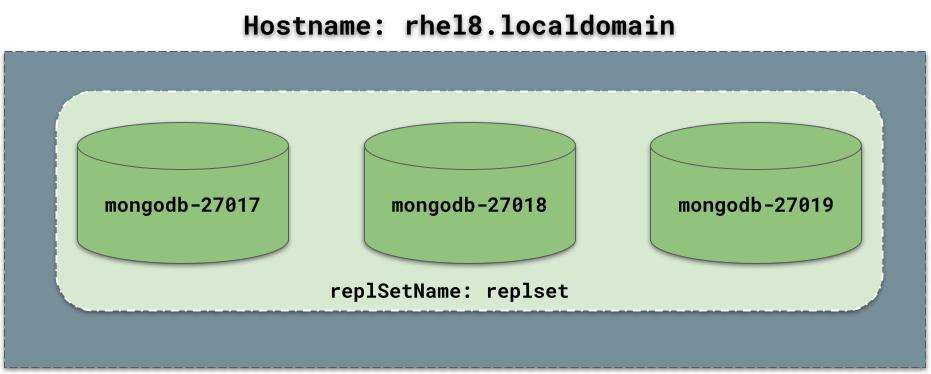
Whether it’s a Replica Set with N nodes or a Sharded Cluster will not change the outcome of this article.
That’s because, and here is the first piece of advice.
To configure PBM in this scenario of multi-instance environment, there are two possibilities:
1. Via a background process with the use of nohup and &:
|
1 2 3 |
nohup pbm-agent --mongodb-uri=mongodb://user:password@127.0.0.1:27017/?authSource=admin&replicaset=replset > /var/log/pbm/pbm-agent.$(hostname -s).27017.log & nohup pbm-agent --mongodb-uri=mongodb://user:password@127.0.0.1:27018/?authSource=admin&replicaset=replset > /var/log/pbm/pbm-agent.$(hostname -s).27018.log & nohup pbm-agent --mongodb-uri=mongodb://user:password@127.0.0.1:27019/?authSource=admin&replicaset=replset > /var/log/pbm/pbm-agent.$(hostname -s).27019.log & |
2. Or use it via the service manager – systemd:
|
1 |
$ sudo systemctl start pbm-agent |
Although the first option looks more tempting due to its simplicity, it’s not the best option because it lacks further control of itself and other processes. PBM needs to have control of the mongod process over a few operations, such as the restoration where the database is restarted several times.
Losing control of a process mid-operation, which can lead to inconsistent results, is not what we are looking for.
In that matter, the recommended approach is to deploy individual PBM service files and let the systemd control them.
1. Configuring the Service file.
|
1 2 3 4 5 |
systemctl status pbm-agent ● pbm-agent.service - pbm-agent Loaded: loaded (/usr/lib/systemd/system/pbm-agent.service; enabled; vendor preset: disabled) Active: inactive (dead) Create a template service file |
We will use the default pbm-agent.service it to create the copy.
2. Create a template service file that you can be used for multiple instances:
|
1 |
$ sudo cp /usr/lib/systemd/system/pbm-agent.service /usr/lib/systemd/system/pbm-agent@.service |
|
1 2 3 4 5 6 7 8 9 10 11 12 13 14 15 |
$ vi /usr/lib/systemd/system/pbm-agent@.service [Unit] Description=pbm-agent for MongoDB instance %i After=time-sync.target network.target [Service] EnvironmentFile=-/etc/sysconfig/pbm-agent-%i Type=simple User=mongod Group=mongod PermissionsStartOnly=true ExecStart=/usr/bin/pbm-agent [Install] WantedBy=multi-user.target |
The %i placeholder in the service file will be replaced with the service number that will pass later, making the service unit specific to that instance.
3. Now, let’s create environment files for each PBM Instance and deploy them to the system.
|
1 2 |
$ sudo cp /etc/sysconfig/pbm-agent /etc/sysconfig/pbm-agent-2 $ sudo cp /etc/sysconfig/pbm-agent /etc/sysconfig/pbm-agent-3 |
PBM Agents for the second and third MongoDB instances (mongod-2, mongod3 )
|
1 |
$ sudo systemctl daemon-reload |
4. Before starting the process, we need to create a user that PBM will use to manage PBM operations inside the Cluster.
Using the official documentation as a reference, let’s create the use as follows:
Note: Execute this step on a primary node of each replica set. In a sharded cluster, this means on every shard replica set and the config server replica set.
|
1 2 3 4 5 6 7 8 |
db.getSiblingDB("admin").createRole({ "role": "pbmAnyAction", "privileges": [ { "resource": { "anyResource": true }, "actions": [ "anyAction" ] } ], "roles": [] }); |
|
1 2 3 4 5 6 7 8 9 10 |
db.getSiblingDB("admin").createUser({user: "pbmuser", "pwd": "secretpwd", "roles" : [ { "db" : "admin", "role" : "readWrite", "collection": "" }, { "db" : "admin", "role" : "backup" }, { "db" : "admin", "role" : "clusterMonitor" }, { "db" : "admin", "role" : "restore" }, { "db" : "admin", "role" : "pbmAnyAction" } ] }); |
You can specify the username and password values and other options of the createUser command as long as the above roles are granted.
5. Configure the MongoDB connection URI for pbm-agent.
As mentioned initially in this article, each pbm-agent process connects to a mongod in a 1 to 1 configuration, in a standalone type of connection.
|
1 |
PBM_MONGODB_URI="mongodb://pbmuser:secretpwd@localhost:27017/?authSource=admin&replicaSet=replset" |
|
1 |
PBM_MONGODB_URI="mongodb://pbmuser:secretpwd@localhost:27018/?authSource=admin&replicaSet=replset" |
|
1 |
PBM_MONGODB_URI="mongodb://pbmuser:secretpwd@localhost:27019/?authSource=admin&replicaSet=replset" |
When we initialize the pbm-agents, they will use their respective environment files to connect to the database.
Note: Just a friendly reminder that we are using a Red Hat installation. For a Debian-based installation, please check the official documentation here for better reference on the paths and directory names.
Before we move forward with the following steps, this is how our configuration would be represented at the moment:
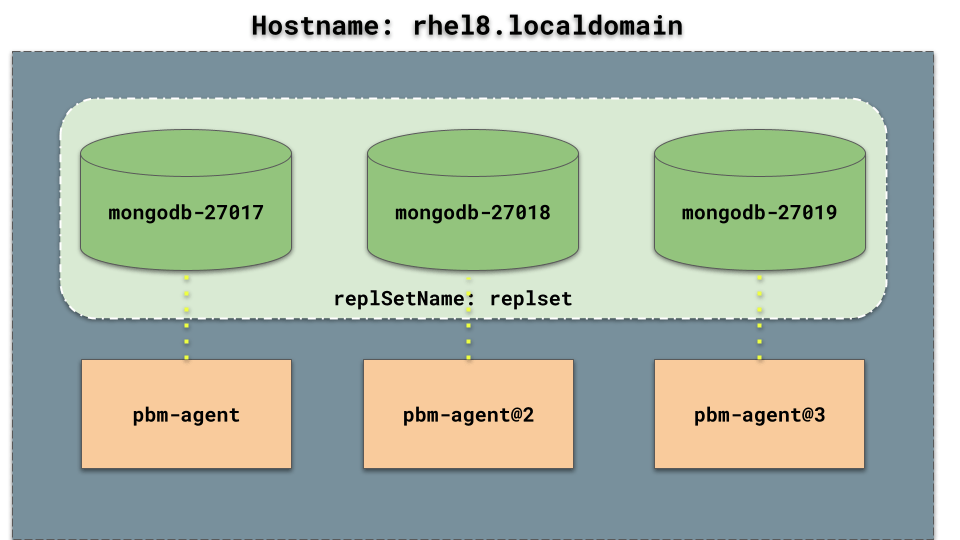
Your pbm-agents are configured but not running yet.
6. In the next step, configure the connection URI for PBM CLI.
At this phase, it’s important to highlight that PBM is composed of two components:
The PBM client connects to Replica Set via MongoDB URI connection string:
|
1 |
$ export PBM_MONGODB_URI="mongodb://pbmuser:[email protected]:27017,127.0.0.1:27018,127.0.0.1:27019/?authSource=admin&replicaset=replset" |
As a Replica Set connection string, you must pass all the nodes that are part of it. That’s in case a node becomes unavailable; the PBM client can detect and automatically route the connection to the available one.
7. Configuring the backup storage location.
Before we fire up the PBM for the first time, we need to configure the storage location. As the name says, this is where PBM will store your backups.
The current supported Storages are:
When configuring the storage location, it’s crucial that all mongod can connect to that same storage endpoint. In this demonstration, it’s simpler because the entire cluster is hosted on a single server.
However, if your nodes are spread over different hosts, they must be able to reach the storage equally, regardless of whether it’s NFS or S3-compatible.
To configure:
|
1 2 |
$ sudo touch /etc/pbm_config.yaml $ sudo chown mongod. /etc/pbm_config.yaml |
2. Specify the storage information within:
|
1 2 3 4 |
storage: type: filesystem filesystem: path: /data/local_backups |
3. Load the file to PBM via the PBM client command:
|
1 |
$ pbm config –-file /etc/pbm_config.yaml |
|
1 2 3 4 5 6 7 |
pitr: enabled: false oplogSpanMin: 0 storage: type: filesystem filesystem: path: /data/local_backups |
That’s the final result after configuring the PBM client:
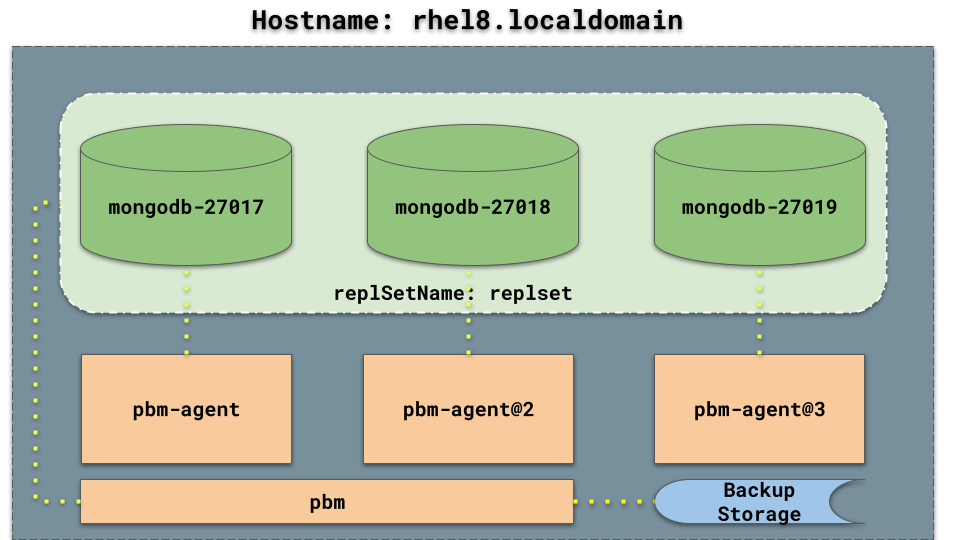
All PBM components are configured but are not running yet.
8. Let’s start the pbm-agents:
|
1 2 3 |
$ sudo systemctl start pbm-agent $ sudo systemctl start pbm-agent@2 $ sudo systemctl start pbm-agent@3 |
|
1 2 3 |
$ sudo journalctl -upbm-agent -a -f $ sudo journalctl -upbm-agent@2 -a -f $ sudo journalctl -upbm-agent@3 -a -f |
|
1 2 |
$ pbm logs $ pbm logs --help ##for more details |
|
1 2 3 4 5 6 7 8 9 10 11 12 13 14 15 16 17 18 19 20 21 |
# pbm status Cluster: ======== replset: - replset/127.0.0.1:27018 [S]: pbm-agent v2.5.0 OK - replset/127.0.0.1:27017 [P]: pbm-agent v2.5.0 OK - replset/127.0.0.1:27019 [S]: pbm-agent v2.5.0 OK PITR incremental backup: ======================== Status [OFF] Currently running: ================== (none) Backups: ======== FS /data/local_backups (none) |
Congratulations, you have configured PBM in a multi-instance environment.
The final diagram of our setup would look as follows:
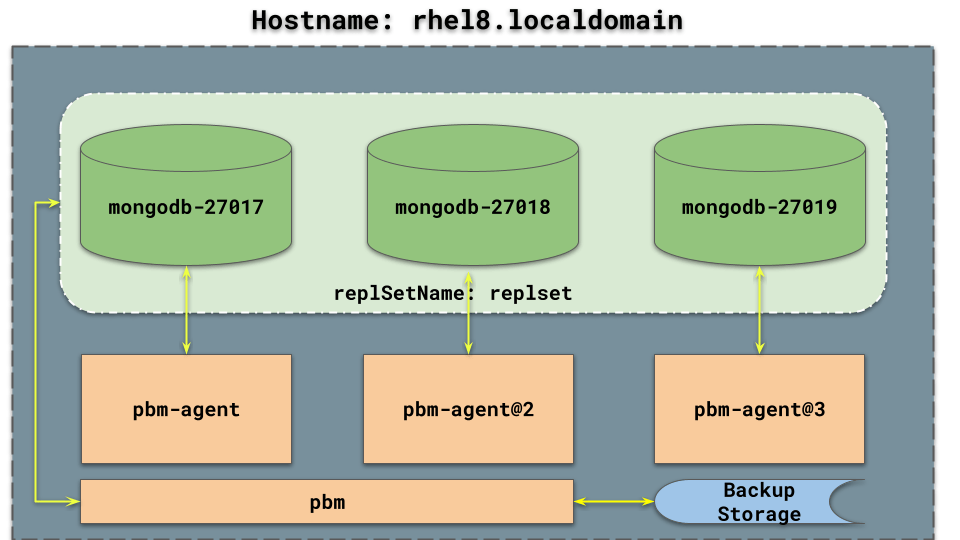
PBM and its components were successfully deployed and are connected and fully functional with the PSMDB cluster.
Deploying Percona Backup for MongoDB (PBM) in a multi-instance environment requires more steps and care than a regular installation. However, the article above aims to provide all the necessary steps, observations, and commands for a seamless installation and optimal tool functionality.
If you have any questions or encounter any problems, feel free to share them in the comments section or open a question in our Community Forum.

Resources
RELATED POSTS